Tag: Compliance

  • Advanced Exchange Online Security and Compliance: The Tools I Use Daily

    Whether it’s PowerShell, VMware, or supporting the team, I give my best because people depend on what happens behind this screen.

    Introduction

    Email is still the heart of business communication, and it’s also the easiest door for attackers to exploit.
    This is my real-world approach to securing Exchange Online: how I protect messages, enforce policies, retain critical data, and keep unwanted activity out of the environment.
    These are the tools I use every day — quiet, behind-the-scenes work that keeps an entire organization safe.


    Messaging Policies and Mail Protection

    What

    Mail flow rules control how messages enter, exit, and move inside the company.
    They prevent risky behavior, secure sensitive data, and keep communication structured.

    Why

    Without strict policies, users can accidentally leak information, forward confidential data, or bypass compliance rules.

    How

    Mail Flow Rules I Maintain

    • Prevent auto-forwarding outside the company
    • Block forwarding to personal Gmail/Yahoo
    • Restrict sensitive keywords (finance, HR, payroll)
    • Add disclaimers for external recipients
    • Enforce rules for shared mailboxes

    PowerShell Example: Show All Transport Rules

    Get-TransportRule | Select Name,State,Mode,Priority
    

    Email Aliases and Address Management

    What

    Aliases provide alternative addresses for departments, teams, or special functions.

    Why

    They simplify communication, eliminate confusion, and keep primary mailboxes private.

    How

    Add an Alias

    Set-Mailbox [email protected] -EmailAddresses @{add="[email protected]"}
    

    Litigation Hold and Retention

    What

    • Litigation Hold preserves every message
    • Retention Policies define how long data must be kept

    Why

    Legal protection.
    Compliance protection.
    And proof that no one destroyed company data intentionally.

    How

    Enable Litigation Hold

    Set-Mailbox [email protected] -LitigationHoldEnabled $true
    

    Check Hold Status

    Get-Mailbox [email protected] | Select LitigationHoldEnabled, LitigationHoldDate
    

    Retention Policies and Labels

    What

    Rules that manage email lifecycle:

    • Keep 7 years (HR, finance)
    • Keep indefinitely (executives)
    • Auto-archive after X years
    • Delete only when compliance approves

    Why

    Retention prevents chaos — too long, too short, or inconsistent retention creates legal risk.

    How

    View Retention Policies

    Get-RetentionPolicy | Select Name,RetentionId,IsDefault
    

    Message Tracing and Investigation

    What

    Tracking the path of an email from sender → filters → inbox.

    Why

    It solves:

    • Missing email
    • Routing delays
    • Spam filtering
    • Proof of delivery
    • Auto-forwarding issues

    How

    Short Trace (Last 2 Hours)

    Get-MessageTrace -RecipientAddress [email protected] -StartDate (Get-Date).AddHours(-2)
    

    Deep Trace

    Get-MessageTraceDetail -MessageTraceId <ID> -RecipientAddress [email protected]
    

    Anti-Phishing, Anti-Spam, and Safe Attachments

    What

    Policies that stop impersonation, malware, spoofing, and fraudulent links.

    Why

    Threat actors evolve daily.
    These policies must evolve with them.

    How

    What I Review

    • Spoof intelligence
    • Impersonation protection
    • Junk thresholds
    • Block/allow lists
    • Safe Links
    • Safe Attachments

    PowerShell Example

    Get-HostedContentFilterPolicy | Select Name,SpamAction,HighConfidenceSpamAction
    

    Hybrid Filtering (Proofpoint + M365)

    What

    When an organization uses Proofpoint externally and M365 internally.

    Why

    Most mail incidents happen between systems — misconfigured connectors are the #1 cause of undelivered mail.

    How

    I Manage

    • Routing tables
    • Inbound connectors
    • Outbound smart hosts
    • Quarantine overrides
    • Digest troubleshooting


    Shared Mailboxes: Tracking Activity

    What

    Audit visibility for shared mailboxes (support, sales, finance).

    Why

    Shared mailboxes often handle sensitive workflows — tracking who sent what is critical.

    How

    Who Sent Mail from Shared Mailbox

    Search-UnifiedAuditLog -StartDate (Get-Date).AddDays(-1) -Operations SendOnBehalf -UserIds [email protected]
    

    Auditing & Monitoring

    What

    My daily and weekly checks for unusual activity.

    Why

    Small changes snowball into major breaches.

    How

    Recent Permission Changes

    Search-UnifiedAuditLog -StartDate (Get-Date).AddHours(-12) -Operations Add-MailboxPermission
    

    Mailbox Size Issues & Quota Management

    What

    Mailbox storage thresholds.

    Why

    When users hit quota, they immediately lose the ability to send.

    How

    Check Size

    Get-ExoMailboxStatistics [email protected] | Select TotalItemSize,ItemCount
    

    Raise Quota

    Set-Mailbox [email protected] -ProhibitSendQuota 95GB
    

    Mailbox Delegation & Access Reviews

    What

    Review who has access to sensitive mailboxes.

    Why

    Too much access = high security risk.

    How

    Check Permissions

    Get-ExoMailboxPermission [email protected] | Where-Object { $_.User -notlike "NT AUTHORITY\SELF" }
    

    Data Loss Prevention (DLP)

    What

    Policies that prevent sensitive data (PII, financial info, SSNs, HR documents) from leaving the organization.

    Why

    Most leaks are accidental, not malicious.
    DLP prevents mistakes from becoming legal disasters.

    How

    View DLP Policies

    Get-DlpCompliancePolicy | Select Name,Mode,State
    

    Typical Rules I Maintain

    • Block sending payroll files
    • Detect credit card patterns
    • Restrict SSN transmission
    • Alert IT on violations


    Email Routing Security

    What

    Routing = the path an email takes from external → internal → outbound.

    Why

    Bad routing = lost email, spoofing risks, failed DKIM/SPF/DMARC, compromised forwarders.

    Attackers LOVE manipulating routing.

    How

    Key Areas I Maintain

    • MX records
    • SPF allow lists
    • Smart host routing
    • TLS enforcement
    • Inbound/outbound connectors
    • No open relay
    • Block unauthorized forwarding

    PowerShell: View Connectors

    Get-InboundConnector | Select Name,Enabled,SenderDomains
    Get-OutboundConnector | Select Name,Enabled,SmartHosts
    

    Conclusion

    This is my Exchange Online security toolkit — the messaging controls, retention systems, compliance protections, and routing safeguards I use every day.
    These tools protect users, leadership, legal teams, and the entire organization from silent risks that hide inside email traffic.

    Real security isn’t loud.
    It’s consistent, careful, and invisible — until the moment it saves the business.

    © 2012–2025 Jet Mariano. All rights reserved.
    For usage terms, please see the Legal Disclaimer.
  • Litigation Hold in M365 (Complete Guide + Best Practices)

    Title:

    Litigation Hold in M365 — What It Is and How to Do It Right

    Introduction

    Litigation Hold preserves mailbox and OneDrive data for legal or compliance needs. I’ve used it in Monster Energy, PIMCO, Church projects, and Martin.


    What Litigation Hold Does

    • Keeps deleted emails
    • Preserves edited messages
    • Locks OneDrive items
    • Prevents irreversible deletion
    • Meets legal retention requirements

    How to Enable (GUI)

    M365 Admin Center → Users → Mailbox → Litigation Hold → Enable


    How to Enable (PowerShell)

    Set-Mailbox [email protected] -LitigationHoldEnabled $true -LitigationHoldDuration 3650
    

    Best Practices

    • Keep at least 5 years
    • Church uses 20 years
    • Store the reason in the notes
    • Never disable without GC/Legal approval
    • Use eDiscovery to search preserved data
    • Document everything

    Common Misunderstandings

    ❌ Litigation Hold is NOT retention policy
    ❌ Litigation Hold is NOT backup
    ✔ Litigation Hold is legal preservation


    Conclusion

    Use Litigation Hold carefully.
    Once enabled, treat that mailbox as evidence.


    © 2012–2025 Jet Mariano. All rights reserved.
    For usage terms, please see the Legal Disclaimer.

  • CIS Hardening Standards in M365 (With Examples)

    Title:

    CIS for Microsoft 365 — Practical Hardening You Can Apply Today

    Introduction

    CIS (Center for Internet Security) publishes best-practice security baselines. In M365, CIS basically means:

    • Hardening Azure AD
    • Enforcing access control
    • Strengthening authentication
    • Improving logging
    • Locking down Exchange, SharePoint, and Teams
    • Using Conditional Access correctly
    • Reducing attack surface

    Below is the real-world version, not the theoretical one.


    1. Require MFA (CIS Level 1 Control)

    CIS Recommendation: MFA for all accounts.

    How to apply:
    Use Conditional Access:

    • Include: All users
    • Exclude: Break-glass admin
    • Require MFA
    • State: On

    2. Disable Legacy Authentication

    CIS Control: Block Basic Auth.

    Azure Example:
    CA Policy → Block legacy protocols
    Exchange → Disable POP/IMAP/SMTP AUTH


    3. Passwordless Authentication

    CIS: Prefer passwordless.

    Implementation:
    Enable:

    • Windows Hello
    • Authenticator App
    • FIDO2 keys

    4. Limit Global Admin Roles

    CIS: Admin roles must be minimized.

    How to do it:
    Assign:

    • GA = 2 accounts
    • Use PIM (Privileged Identity Management)
    • Require MFA + justification

    5. Require Compliant Devices

    CIS: Block unmanaged devices.

    Apply with Conditional Access:
    Grant → Require device to be:

    • Compliant
    • Hybrid joined
    • Or require approved apps

    6. Exchange Online Protections

    CIS: Anti-phishing, anti-malware, safe links, safe attachments.


    7. Audit Logging

    CIS: Must be enabled.

    Check:

    Get-AdminAuditLogConfig
    Get-AdminAuditLogConfig | FL UnifiedAuditLogIngestionEnabled
    

    8. Session Control

    Use Conditional Access → Session Limits

    • 8 hour max
    • Force reauthentication

    Conclusion

    CIS is not complicated.
    It’s just applying security baselines consistently using tools already built into M365:

    • Conditional Access
    • Defender
    • PIM
    • MFA
    • Logging

    © 2012–2025 Jet Mariano. All rights reserved.
    For usage terms, please see the Legal Disclaimer.

  • Why PowerShell Still Beats Purview for Real Forensics: Speed, Depth, and No UI Limits

    Introduction

    Microsoft Purview is Microsoft’s compliance, audit, and eDiscovery platform for Microsoft 365. It provides GUI-driven tools for administrators to perform searches, create holds, review data, and respond to legal and compliance requirements.

    But here’s the reality that senior M365 engineers know:

    Purview is powerful, but it is not complete.
    It has strict limits, throttles, and boundaries designed for safety and performance — not deep forensic analysis.

    This is why serious investigations always end up in PowerShell, where engineers can bypass GUI limitations, perform deeper searches, and collect evidence with precision.


    Section 1 — What Purview Is (in plain English)

    Purview provides:

    • Content search
    • eDiscovery (Standard & Premium)
    • Litigation holds
    • Audit logs
    • Labeling and retention
    • Insider risk scanning
    • Communication compliance

    It is designed for:

    • Legal teams
    • Compliance officers
    • HR investigations
    • Corporate governance
    • High-level reporting

    And for these purposes, Purview works very well.


    Section 2 — The Hidden Limitations of Purview

    Here are the real limits engineers face:

    1. Sending & Rate Limits

    Purview actions follow the same throttling limits as Exchange Online.
    You cannot pull unlimited messages instantly.

    2. eDiscovery Query Limits

    Each Purview search query is limited to:
    10,000 characters
    This is a major limitation for complex filters.

    3. Maximum Export Sizes

    Large exports (multiple gigabytes) often fail or time out.
    This is why forensic engineers break searches into chunks.

    4. Maximum Holds Per Mailbox

    A mailbox can only have:
    25 holds total
    More than 25 affects performance, indexing, and mailbox health.

    5. External Recipient Limits

    Purview cannot override existing mailbox restrictions.

    6. Tenant-Wide Limits

    Even Premium eDiscovery has:

    • Search concurrency limits
    • Workflow throttling
    • Processing delays
    • Indexing dependency (if an item isn’t indexed, Purview can’t see it)

    7. Purview is not real-time

    It depends on indexing engines.
    Indexing delays = missing results.

    8. Purview cannot reveal everything

    For true forensics you often need:

    • Message trace logs
    • Transport logs
    • Historical mailbox snapshots
    • DeletedItems and RecoverableItems subfolders
    • Soft delete and hard delete content
    • Hidden folders
    • Unindexed items

    Purview cannot provide all of that.


    Section 3 — Why PowerShell is Superior for True Forensics

    When Microsoft engineers or financial institutions perform real investigations, they do not rely on Purview alone. They rely on PowerShell because PowerShell can do what Purview cannot.

    1. Access Every Folder (Including Hidden Ones)

    PowerShell can query:

    • Inbox
    • Sent
    • DeletedItems
    • RecoverableItems
    • Purges
    • Versions
    • Subfolders not visible in Outlook
    • Unindexed items

    Purview can’t.


    2. No GUI query limit

    There is no 10,000-character query restriction in PowerShell.

    Pattern searches can be huge, detailed, and layered.


    3. Deep Header and Message Metadata Extraction

    PowerShell can extract:

    • X-MS-Exchange-Organization-AuthAs
    • X-MS-Exchange-CrossTenant-*
    • Original client IP
    • Authentication results
    • Message submission type
    • Connector source
    • Spam confidence level (SCL)
    • Envelope sender
    • Message ID tracking

    Purview provides only summarized metadata.


    4. Instant, Real-Time Search

    PowerShell does not wait for indexing.
    You can search unindexed items directly.

    This is critical in security incidents.


    5. Mailbox Timeline Reconstruction

    With PowerShell you can reconstruct:

    • When the message was received
    • When it was moved
    • If rules redirected it
    • If a compromised mailbox forwarded it
    • If the user deleted it
    • If it was purged

    Purview cannot reconstruct movement history.


    6. PowerShell is scripting + automation

    You can automate:

    • Large case collections
    • Exports
    • Multi-mailbox searches
    • Pattern scans
    • Complex filters
    • Timeline reconstruction

    Purview cannot automate eDiscovery at the same level.


    Section 4 — When to Use Purview vs PowerShell

    Use Purview for:

    • Legal holds
    • HR requests
    • Basic content searches
    • Governance
    • Compliance reporting
    • Policy enforcement

    Use PowerShell for:

    • Security incidents
    • Ransomware investigations
    • BEC (Business Email Compromise)
    • External spoofing investigations
    • Compromised mailbox analysis
    • Hidden folder discovery
    • Deep metadata extraction
    • Multi-mailbox timeline reconstruction

    Most senior email engineers agree:

    Purview is the “legal view.”
    PowerShell is the “truth view.”


    Conclusion

    Purview is an essential tool for compliance and legal workflows — but it is not a forensic engine.
    Its GUI limits, throttles, and reliance on indexing mean that it can never replace the precision, speed, and depth of PowerShell.

    This is why real investigations — especially in financial institutions and regulated organizations — always rely on PowerShell for final answers.


    © 2012–2025 Jet Mariano. All rights reserved.
    For usage terms, please see the Legal Disclaimer.

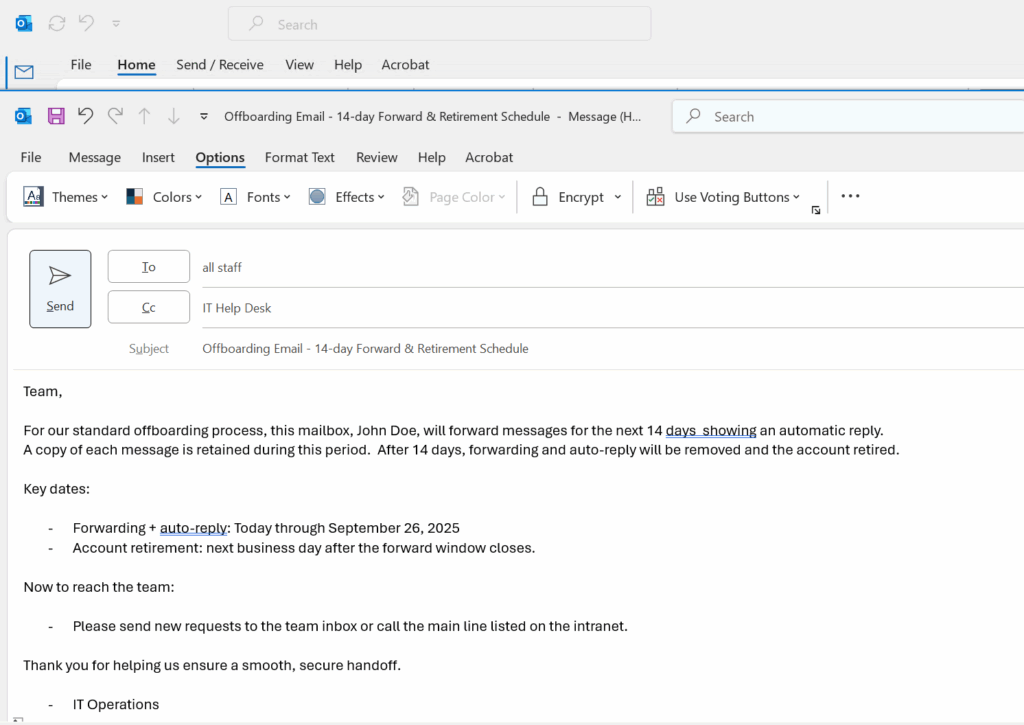
  • Marked in Time — Sep 24, 2025 Email Offboarding: Forward for 14 Days → Then Retire the Mailbox (No Shared Mailboxes)

    Clean handoff: 14-day forward then retired the mailbox. using powershell

    Excerpt

    A simple, low-risk offboarding pattern: enable a 14-day forward to the supervisor with an auto-reply, keep copies in the mailbox, then remove forwarding and retire the account. No shared mailboxes, no drama.

    Photo suggestion

    Something neutral and professional: a close-up of a keyboard lock icon, or a soft sunset over a temple (if you want to keep the page’s visual theme).
    Caption idea: “Quiet handoffs, clean closures.”


    Context (redacted)

    Policy: No shared mailbox conversions. For leavers, enable a 2-week mail forward to the supervisor, show a clear auto-reply, then delete the user so the mailbox soft-deletes and later hard-deletes. Team files live in SharePoint/Teams; local working data is archived to encrypted USB for short-term retention.


    Before (T0) — Enable 14-Day Forward + Auto-Reply

    Goal: Forward new messages for two weeks and keep a copy in the mailbox for audit/review; clearly inform senders.

    Replace with your addresses before running:
    $User = "[email protected]"
    $Supervisor = "[email protected]"

    # Admin sign-in
    Import-Module ExchangeOnlineManagement -ErrorAction SilentlyContinue
    Connect-ExchangeOnline
    
    # Vars
    $User       = "[email protected]"
    $Supervisor = "[email protected]"
    $Days       = 14
    $Now        = Get-Date
    $End        = $Now.AddDays($Days)
    
    # Enable mailbox-level forwarding (keep a copy)
    Set-Mailbox -Identity $User `
      -ForwardingSmtpAddress $Supervisor `
      -DeliverToMailboxAndForward $true
    
    # Schedule auto-replies for the same window
    $InternalMsg = @"
    This mailbox is no longer monitored.
    For assistance, please contact $Supervisor or call the main line.
    "@
    
    $ExternalMsg = @"
    Thanks for your message. This mailbox is no longer monitored.
    Please email $Supervisor for assistance.
    "@
    
    Set-MailboxAutoReplyConfiguration -Identity $User `
      -AutoReplyState Scheduled `
      -StartTime $Now `
      -EndTime $End `
      -InternalMessage $InternalMsg `
      -ExternalMessage $ExternalMsg `
      -ExternalAudience All
    

    Parallel housekeeping (same day):

    • Reset the user’s password, revoke sign-in sessions, and (optionally) block sign-in during the transition.
    • Transfer/confirm ownership of OneDrive/SharePoint/Teams files needed by the team.
    • Archive any local workstation data to an encrypted USB (BitLocker To Go) if policy allows.

    After (T+14) — Remove Forwarding → Retire Account

    Goal: Stop forwarding, disable auto-reply, and delete the user (soft-delete mailbox). Optionally hard-delete the mailbox once soft-delete is visible.

    Import-Module ExchangeOnlineManagement -ErrorAction SilentlyContinue
    Connect-ExchangeOnline
    
    $User = "[email protected]"
    
    # Remove mailbox-level forwarding & auto-reply
    Set-Mailbox -Identity $User -ForwardingSmtpAddress $null -DeliverToMailboxAndForward $false
    Set-MailboxAutoReplyConfiguration -Identity $User -AutoReplyState Disabled
    
    # Delete the user in Entra ID (do this in the portal or via Graph)
    # Entra admin center → Users → select user → Delete
    # After directory sync, the mailbox will be in "soft-deleted" state (up to 30 days)
    
    # Optional: Permanently delete the mailbox once soft-deleted
    $Soft = Get-Mailbox -SoftDeletedMailbox -ErrorAction SilentlyContinue |
            Where-Object {$_.PrimarySmtpAddress -eq $User}
    if ($Soft) {
      Remove-Mailbox -PermanentlyDelete -Identity $Soft.ExchangeGuid -Confirm:$false
    }
    

    Lessons Learned

    • Clarity beats complexity. Forward + auto-reply for a defined window avoids confusing senders and helps the team capture anything urgent.
    • Keep a copy while forwarding. It preserves context during the transition.
    • No shared mailbox needed. If policy prohibits it, you can still do a clean, auditable handoff.
    • Document the timestamps. Password reset, token revocation, forward on/off, user deletion, and any permanent mailbox purge.

    Pocket I’m Keeping

    • Short window, clear message, clean cutover.
    • Files belong in SharePoint/Teams; email is a temporary bridge.
    • Quiet, consistent process reduces friction and drama.

    © 2012–2025 Jet Mariano. All rights reserved.
    For usage terms, please see the Legal Disclaimer.

error: Content is protected !!