Tag: exchange

  • The Evolution of Microsoft Exchange: From 5.0 to Exchange Online (EXO)

    A Technical History Through the Tools, Upgrades, and Real-World Administration That Shaped Modern Email


    Email administration today looks nothing like it did in the mid-1990s. What began as a system of flat files and small IS databases has evolved into a globally distributed, cloud-secure service powered by modern authentication, forensic automation, and layered identity protections.

    This article covers the full evolution — from Exchange 5.0 → 5.5 → 2000 → 2003 → 2007 → 2010 → 2013 → 2016 → Hybrid → Exchange Online — through the practical tools and real operational practices that defined each era.

    It also highlights legacy repair tools (ISINTEG, ESEUTIL), the emergence of PowerShell, and modern security controls such as DKIM, DMARC, and real-time EXO policies.


    1. Exchange 5.0 — The GroupWise Era & The Limits of Early Messaging

    When Exchange 5.0 existed, Novell GroupWise was still considered the enterprise email standard. Capacity was limited and reliability required constant hands-on administration.

    Key Characteristics

    • Basic directory service
    • Small private and public folder stores
    • No Active Directory yet
    • No PowerShell
    • 16GB database ceiling
    • Frequent corruptions under heavy load

    Real Tools Used

    🔧 ISINTEG — Logical Database Repair

    Example usage:

    ISINTEG -pri -fix -test alltests
    

    🔧 ESEUTIL — Physical Database Repair

    Soft recovery:

    ESEUTIL /r E00 /l "E:\logs" /d "E:\mdbdata"
    

    Hard recovery:

    ESEUTIL /p "E:\mdbdata\priv.edb"
    

    Defrag/whitespace removal:

    ESEUTIL /d "E:\mdbdata\priv.edb"
    

    White space mattered because the database could never exceed the size limit, and defrags were essential to survive weekly growth.


    2. Exchange 5.5 — The First True Enterprise Version

    Exchange 5.5 replaced GroupWise in many organizations because it solved the two biggest weaknesses:

    Major Improvements

    • Larger database limits
    • Internet Mail Connector (IMC) matured
    • Directory replication across sites
    • Better MAPI stability
    • More predictable backups

    This was the version where large organizations first began to trust Exchange for hundreds or thousands of users.

    Database limitations still required:

    • Regular whitespace removal
    • Offline defrags
    • ISINTEG repairs

    3. Exchange 2000 / 2003 — Active Directory Arrives

    The introduction of Active Directory changed everything.

    Now Possible

    • Kerberos authentication
    • Unified Global Address List
    • Recipient policies
    • Improved SMTP stack
    • Better routing groups

    Tools of the Era

    • ESEUTIL still required
    • ISINTEG for logical repair
    • Streaming file (.STM) management
    • COM+ based transport pipeline

    Disaster recovery still required:

    • Hard repairs
    • Log replays
    • Offline maintenance windows

    4. Exchange 2007 — PowerShell Revolutionizes Email Administration

    Exchange 2007 was the turning point. This version introduced:

    Major Innovations

    • PowerShell (EMS)
    • Role-based server architecture
    • Database Availability Groups (DAGs begin later)
    • Transport rules
    • Modern SMTP pipeline

    Example PowerShell Operations

    Bulk mailbox creation

    Import-Csv users.csv | % {
      New-Mailbox -UserPrincipalName $_.UPN -Name $_.Name -Alias $_.Alias
    }
    

    Transport rule creation

    New-TransportRule -Name "Block EXE" -AttachmentExtensionMatchesWords ".exe" -RejectMessageReason "Executable blocked"
    

    Database health

    Get-MailboxDatabaseCopyStatus *
    

    PowerShell replaced ISINTEG as the primary troubleshooting interface.


    5. Exchange 2010 / 2013 — High Availability & Hybrid Era

    These versions supported:

    • DAGs with multiple copies
    • Outlook Anywhere (RPC over HTTPS)
    • Cross-forest migrations
    • Massive mailboxes (50GB+)
    • First large-scale hybrid deployments

    Database Whitespace Management

    Modern approach:

    Get-MailboxDatabase -Status | ft Name,AvailableNewMailboxSpace
    

    To reclaim all space:

    1. Create new database
    2. Move mailboxes
    3. Remove old database
    4. Mount clean database

    Multi-region examples

    • Databases per region (NA/APAC/EMEA)
    • Public folder migrations
    • CAS/Hub/MBX role separation

    6. On-Prem to Cloud Migrations — AWS WorkMail, Exchange 2010, Hybrid, EXO

    Organizations with large global footprints began migrating:

    Migration Examples

    • From AWS WorkMail → Exchange 2013 HA → EXO
    • From Exchange 2010 datacenters → Hybrid → EXO
    • From Exchange 2013 → EXO using HCW and staged cutover

    Challenges Solved by EXO

    • No more ESEUTIL
    • No more ISINTEG
    • No more DAG patching
    • No more weekend downtimes
    • Automatic redundancy
    • Modern authentication
    • Better malware scanning

    7. Exchange Online — The Modern Cloud Era

    Today, administrators rely on:

    • Exchange Online PowerShell v3
    • Graph API
    • Defender for O365
    • Purview eDiscovery
    • Modern connectors
    • DKIM / DMARC enforcement
    • Real-time spam intelligence
    • Modern auth for SMTP

    How to Rotate DKIM 2048-bit Keys

    Admin Center → Security → Email Authentication → DKIM → Rotate Keys

    Verify in PowerShell

    Get-DkimSigningConfig | fl Domain,Selector1CNAME,Selector2CNAME
    

    Keys should be:

    • 2048-bit
    • Rotated regularly
    • Protected from unauthorized access

    **8. Real-World Security Hardening in EXO

    (Including the Kill-Switch Scripts)**

    Last-generation threats require immediate defensive controls.
    These are sanitized versions of the two emergency scripts used to block impersonation attacks:


    🛑 Kill Switch Transport Rule (Blocks All External Sender Impersonation)

    New-TransportRule -Name "KILL-SWITCH" `
    -FromScope NotInOrganization `
    -SentToScope InOrganization `
    -SetHeaderName "X-Blocked" `
    -SetHeaderValue "EmergencyBlock" `
    -StopRuleProcessing $true `
    -Enabled $true `
    -Mode Enforce
    

    🛑 Block-All Impersonation Rule

    New-TransportRule -Name "BLOCK-IMPERSONATION" `
    -HeaderMatchesMessageHeader "From" `
    -HeaderMatchesPatterns ".*@yourdomain\.com" `
    -SentToScope InOrganization `
    -FromScope NotInOrganization `
    -RejectMessageReasonText "External sender attempted domain impersonation" `
    -StopRuleProcessing $true
    

    After the event is over, disable:

    Disable-TransportRule "KILL-SWITCH"
    Disable-TransportRule "BLOCK-IMPERSONATION"
    

    9. Why Exchange Online Beats Every On-Prem Version

    No More:

    • Database corruption
    • ESEUTIL repair weekends
    • ISINTEG logical rebuilds
    • Streaming file failures
    • Whitespace management
    • RPC failures
    • CAS array dependency

    Instead You Get:

    • Multi-region HA
    • Continuous patching
    • DKIM / DMARC alignment
    • Modern authentication
    • Real-time message trace
    • Defender Safe Links/Safe Attachments
    • Purview forensic tools
    • 24/7 cloud threat intelligence

    10. Summary

    This blog ties together:

    • The original on-prem tools (ISINTEG, ESEUTIL)
    • The arrival of AD
    • The PowerShell revolution
    • The hybrid era
    • The modern cloud security stack
    • DKIM rotation
    • EXO forensic investigation
    • Emergency transport rule defense

    It shows why the move from Exchange 5.0 to EXO was inevitable — every stage improved reliability, scalability, administration, and security.


    © 2012–2025 Jet Mariano. All rights reserved.
    For usage terms, please see the Legal Disclaimer.
  • Outlook Won’t Send, Can’t Search, or Stuck on “Updating”? A One-Page Fix (for Everyone)

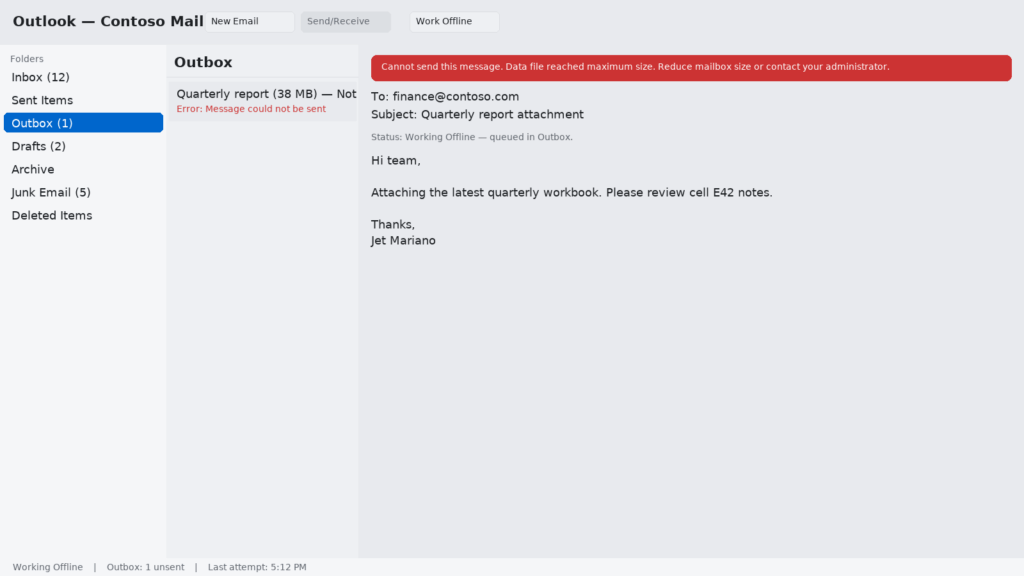
    Outbox (1) and a red error banner—typical signs Outlook can’t send because the local data file (OST/PST) hit the size limit or the client is Working Offline.

    Intro

    When mail matters, guessing hurts. This is the quick way I fix the three big Outlook problems—won’t send, can’t search, won’t connect—with steps for employees and deeper checks for admins.

    The straight line

    Rule #1: Prove if it’s your Outlook, your profile, or the service—then act. Don’t change ten things; follow the flow.


    For employees (5 fixes you can do safely)

    1. Compare with Outlook on the web
      • Open your browser → sign in to outlook.office.com.
      • If web mail works, your account is fine; the issue is this device/Outlook app.
    2. Check the basics
      • Make sure Work Offline isn’t turned on.
      • Restart Outlook (fully exit from the tray), then restart the computer.
      • Trim the Outbox: very large attachments (>20–25 MB) can block the queue.
    3. Search not finding results?
      • Windows: Outlook → File → Options → Search → Indexing OptionsRebuild. Give it time.
      • Mac: System Settings → Siri & Spotlight → ensure Mail & Messages are allowed. If needed, add then remove your Outlook profile folder from Spotlight Privacy to force a re-index.
    4. Disable add-ins (quick test)
      • Windows: File → Options → Add-insCOM Add-ins → Go… → uncheck all (especially meeting/CRM add-ins).
      • Mac (New Outlook): Get Add-insMy add-ins → disable. Re-test.
    5. Free up mailbox space
      • Empty Deleted Items and Junk, clear Sync Issues folders, and archive old Sent Items. Low free space = slow Outlook.

    If mail works on the web but not in the app after these steps, it’s a profile or device issue—hand off to IT or continue with the admin flow below.


    For IT pros (targeted triage)

    1) Scope & signal

    • Service or client? If OWA works and multiple users in the site are fine, it’s local.
    • Status bar messages matter: “Trying to connect…”, “Updating this folder…”, “Need password”, “Limited connectivity”—write them down.

    2) Profile & connectivity

    • New profile (Windows): Control Panel → Mail (Microsoft Outlook)Show Profiles…Add → set Prompt for a profile and test.
    • Connection Status (Windows): Ctrl + right-click the Outlook tray icon → Connection Status; confirm Auth/Protocol and server round-trip.
    • Cached Exchange setting: File → Account Settings → Account → Change… → move the mail to keep offline slider down (e.g., 6–12 months) and retest.

    3) Search

    • Windows Search service running? Rebuild from Indexing Options and ensure Outlook is in the index list.
    • OST health: If search is corrupt or folders are out of sync, close Outlook, rename the OST, reopen to rebuild.

    4) Add-ins & startup

    • Safe mode test (Windows): Start Outlook while holding Ctrl (you’ll be asked to start in safe mode). If that works, remove add-ins (Teams/Zoom/CRM are usual suspects).
    • Reset the navigation pane (Windows): Run command box and reset the nav pane if views are corrupted (as an IT step).

    5) Credentials & auth

    • Windows Credential Manager: remove stale Office/Outlook creds; relaunch and re-auth.
    • Modern Auth prompts stuck? Close all Office apps; kill background “Office” processes; try again.

    6) Calendar & send issues

    • Delegate/Shared mailbox problems:** verify Full Access/Send As and re-map the mailbox.
    • Rules causing loops: export, disable all, re-test send/receive.
    • Stuck meetings: clear Outbox, switch to Online Mode briefly, send, switch back to Cached.

    7) Tools that save time

    • Microsoft Support and Recovery Assistant (SaRA): excellent for profile, activation, and connection repairs.
    • Message Trace (Exchange/Defender portals): confirm delivery path before blaming the client.

    8) When to rebuild or repair

    • New profile fixed it? Keep it and retire the old one.
    • Office repair (Quick Repair, then Online Repair) if multiple Office apps are unstable.

    60-second decision tree

    1. OWA works?
      • No → service/network issue; escalate.
      • Yes → client/device issue → continue.
    2. Safe mode works?
      • Yes → disable add-ins until stable.
      • No → new profile.
    3. Still failing after new profile?
      • Check Credentials, Cached slider, OST rebuild.
      • If send only fails for shared/delegate mailbox → permissions or transport rules.
    4. Search still blank?
      • Rebuild index (Windows), verify Spotlight (Mac), rebuild OST.

    Prevent the repeat (settings that help)

    • Mailbox hygiene: retention/archiving for Sent & large attachments.
    • Keep add-ins lean: only what the team truly uses.
    • Known-good profile image: for kiosk/reimaging scenarios.
    • Network indicators: if Wi-Fi is flaky, Outlook shows it first—fix the Wi-Fi.
    • One place for help: a short “How to open OWA + report exact error text + timestamp” guide pinned for staff.

    Final reflection — why this approach won’t go away

    • Clarity beats tinkering. OWA tells you if it’s the account or the app.
    • Profiles are perishable. Rebuilding is faster than endless registry spelunking.
    • Add-ins are the usual villains. Test in safe mode first.
    • Search takes time. Reindex once, then let it finish; don’t keep poking.
    • Document the path. The same steps teach juniors and calm frustrated users.

    For employees — Data file full? (PST/OST ~50 GB default)

    Symptoms: messages stuck in Outbox, sync never finishes, warnings about “data file reached maximum size.”

    Fix (Windows Outlook):

    1. Outlook → File → Info → Tools → Mailbox Cleanup
      • Empty Deleted Items / Junk.
      • View Mailbox Size → delete/archive biggest folders (Sent Items is usually #1).
    2. Search for big attachments: in the search bar choose Size → Huge (> 1 MB) or Very Large (> 5 MB) and delete/move.
    3. Data file compact: File → Account Settings → Account Settings → Data Files (tab) → select your account’s Outlook Data FileSettings → Compact Now.
    4. If you use Exchange/Business account: File → Account Settings → Account Settings → Change → slide “Mail to keep offline” down to 6–12 months, then restart Outlook (older mail stays available in OWA).

    If OWA sends fine but the app still can’t after this, hand it to IT (profile rebuild or archive needed).


    For IT pros — PST/OST limits & remediation

    • Default limit: modern Outlook uses ~50 GB per PST/OST (configurable via policy). Near the cap (there’s a warn threshold), send/receive fails and users see “data file has reached maximum size.”
    • Triage: confirm the user’s Data Files size (File → Account Settings → Account Settings → Data Files), and whether the profile caches shared mailboxes (common OST bloat).
    • Remediation options (prefer in this order):
      1. Mailbox hygiene / archiving: enable Online Archive (Exchange Online) and apply retention to move old items automatically.
      2. Reduce cache depth: set Mail to keep offline to 3–12 months; leave older mail online.
      3. Shared mailbox strategy: uncheck Download shared folders (Account Settings → More Settings → Advanced) for very large shared mailboxes, or add them as additional mailboxes without caching.
      4. Compact / rebuild OST: after cleanup, compact; if corruption suspected, close Outlook, rename the OST, relaunch to rebuild.
      5. Policy keys: you can raise the max size via policy/registry (also set the warn threshold) but Microsoft guidance is to favor Online Archive over very large OST/PST files.

    Tell-tale errors/messages: send stuck in Outbox, “Data file reached maximum size,” frequent sync loops; OWA sends normally.


    What I hear now

    • Start with service vs. client (OWA).
    • Safe mode, then add-ins.
    • If in doubt, new profile.
    • Index once, wait.
    • Be kind: Outlook issues feel personal to users—steady process helps them breathe.

    © 2012–2025 Jet Mariano. All rights reserved.
    For usage terms, please see the Legal Disclaimer.

error: Content is protected !!