Maintaining visibility into Group Policy Objects (GPOs) is critical before domain consolidation, tenant migration, or infrastructure modernization.
Below are seven native PowerShell commands used to generate a full GPO inventory, validate configurations, and export audit-ready reports.
All commands use built-in GroupPolicy modules — no third-party tools required.
1. Export GPO Summary Inventory
Exports high-level metadata for all GPOs in the domain.
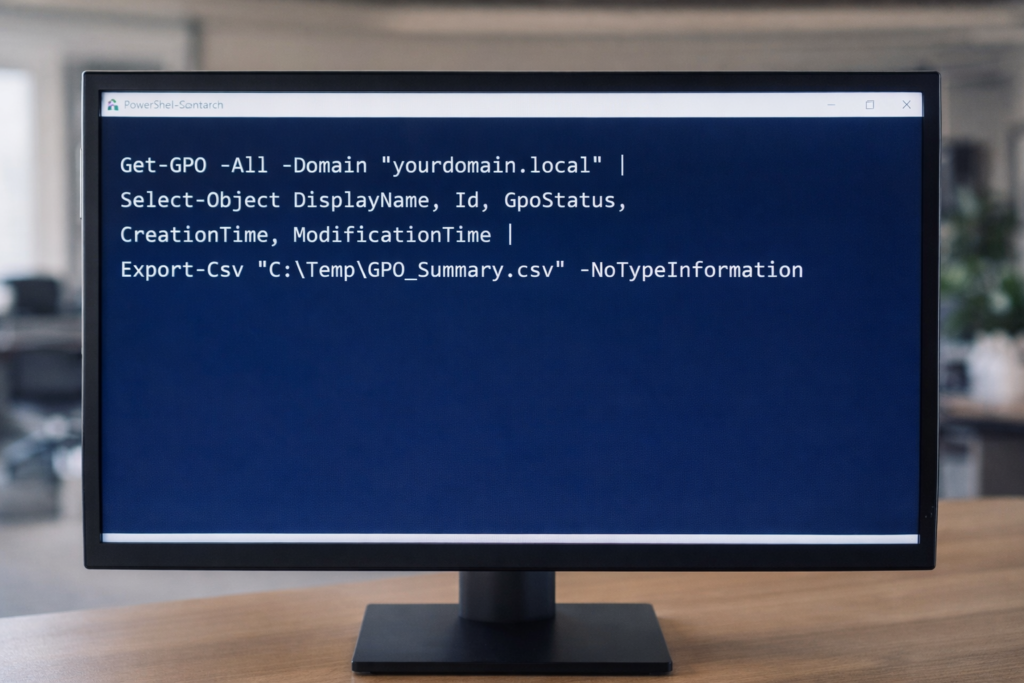
Get-GPO -All -Domain "yourdomain.local" |
Select-Object DisplayName, Id, GpoStatus, CreationTime, ModificationTime |
Export-Csv "C:\Temp\GPO_Summary.csv" -NoTypeInformation
This provides:
• GPO Name
• GUID
• Status (Enabled/Disabled)
• Creation Date
• Last Modified Date
2. Generate Full XML Reports for All GPOs
Creates detailed configuration exports for forensic or migration analysis.
New-Item -ItemType Directory -Path "C:\Temp\GPOReports" -Force

Get-GPO -All -Domain "yourdomain.local" |
ForEach-Object {
    Get-GPOReport -Guid $_.Id -ReportType XML -Path "C:\Temp\GPOReports\$($_.DisplayName).xml"
}
XML reports include:
• Security settings
• Registry policies
• Administrative templates
• Computer/User configuration details
3. Generate Executive-Readable HTML Report
Get-GPOReport -All -Domain "yourdomain.local" -ReportType HTML -Path "C:\Temp\All_GPOs_Report.html"Useful for:
• Leadership review
• Change control documentation
• Audit preparation
4. Identify Fully Disabled GPOs
Get-GPO -All -Domain "yourdomain.local" |
Where-Object {$_.GpoStatus -eq "AllSettingsDisabled"} |
Select DisplayName, Id, GpoStatus |
Export-Csv "C:\Temp\Disabled_GPOs.csv" -NoTypeInformation
Helps identify cleanup opportunities before migration.
5. Validate a Specific GPO (Live Proof Command)
Get-GPO -Name "Default Domain Policy" -Domain "yourdomain.local"Useful for:
• Live validation
• Troubleshooting
• Demonstrating configuration integrity
6. Export WMI Filters
Get-GPWmiFilter -Domain "yourdomain.local" |
Select Name, Description |
Export-Csv "C:\Temp\WMI_Filters.csv" -NoTypeInformation
Important when:
• GPOs are scoped using OS filters
• Planning domain consolidation
7. Create a Baseline Snapshot Before Major Change
Get-GPO -All -Domain "yourdomain.local" |
ForEach-Object {
    Get-GPOReport -Guid $_.Id -ReportType HTML -Path "C:\Temp\Baseline\$($_.DisplayName).html"
}
This creates a point-in-time snapshot for rollback or comparison.
Why This Matters
Before:
• Domain merge
• Tenant consolidation
• Intune migration
• Security hardening
• Infrastructure cleanup
You need visibility.
PowerShell provides:
• Repeatability
• Transparency
• Audit defensibility
• No dependency on external tooling
© 2012–2026 Jet Mariano. All rights reserved.
For usage terms, please see the Legal Disclaimer.