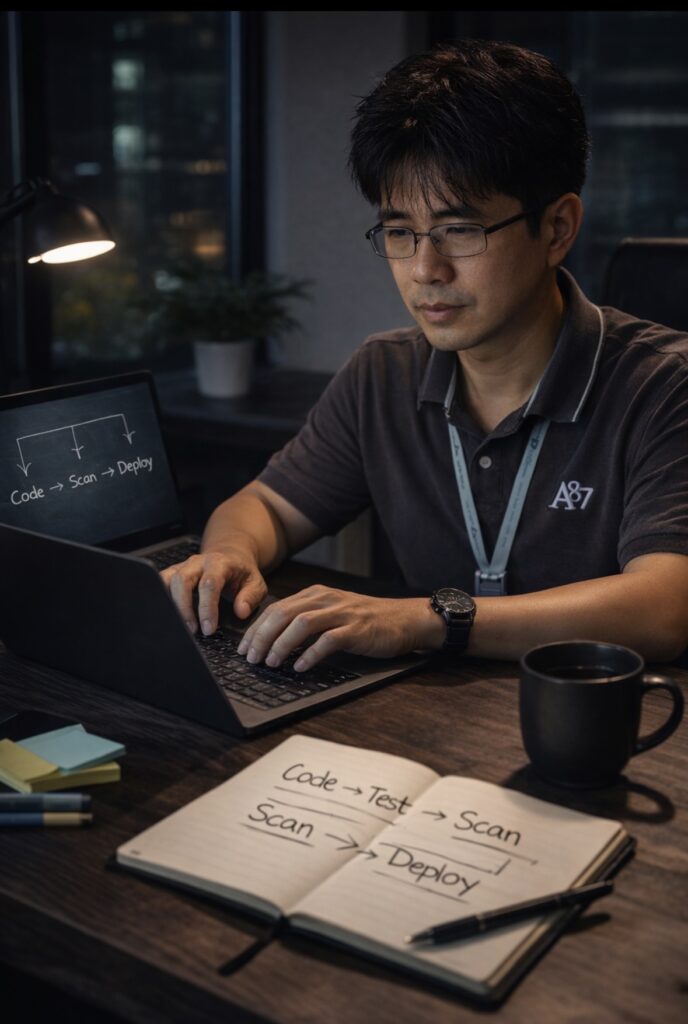
DevSecOps may sound complex, but at its core it is simple:
- Write code
- Store it in Git
- Automate build and test
- Scan for vulnerabilities
- Deploy securely
This guide walks step by step, assuming only basic familiarity with Git, Azure, YAML, and Python.
No assumptions. No shortcuts.
Before Starting: Required Foundations
1. Basic Git Understanding
Git is version control.
Think of it as a time machine for code.
Common commands:
git init
git add .
git commit -m "Initial commit"
git push
What this means:
git initcreates a repositorygit add .stages changesgit commitsaves a snapshotgit pushsends changes to Azure DevOps or GitHub
In DevSecOps, Git is the source of truth.
If it’s not in Git, it doesn’t exist.
2. Basic Azure Comfort
In Azure DevOps, there are:
- Repos (code lives here)
- Pipelines (automation runs here)
- Artifacts (build output stored here)
The workflow:
Code → Push → Pipeline Runs → Security Checks → Artifact Produced
No manual deployments.
3. Understanding YAML (Very Important)
YAML is just structured configuration.
Example:
trigger:
  branches:
    include:
      - main
This simply means:
“When code is pushed to main branch, run the pipeline.”
Another example:
pool:
  vmImage: windows-latest
This means:
“Use a Microsoft-hosted Windows machine to run tasks.”
YAML is not programming.
It is instructions.
Indentation matters.
Spacing matters.
No tabs.
4. Light Python Example
Create a simple app.
app/app.py
from flask import Flask

app = Flask(__name__)

@app.get("/")
def home():
    return "Secure automation is running"

if __name__ == "__main__":
    app.run(host="0.0.0.0", port=8080)
requirements.txt
flask==3.0.3Simple. Clean. Testable.
The DevSecOps Analogy: Snake and Eagle
In nature, a snake can overpower an eagle by wrapping tightly and applying controlled pressure.
In DevSecOps:
- The eagle represents risk, exposure, and vulnerabilities.
- The snake represents automation, discipline, and enforcement.
Manual processes allow risk to fly freely.
Automated pipelines wrap around code changes, applying consistent pressure:
- Tests must pass.
- Vulnerabilities must be scanned.
- Secrets must not leak.
Automation constrains risk.
That is DevSecOps.
Week 1: Build and Test Pipeline
azure-pipelines.yml
trigger:
  branches:
    include:
      - main

pool:
  vmImage: windows-latest

variables:
  PythonVersion: "3.11"

steps:
- task: UsePythonVersion@0
  inputs:
    versionSpec: "$(PythonVersion)"
    addToPath: true

- powershell: |
    python -m pip install --upgrade pip
    pip install -r app/requirements.txt
    pip install pytest
  displayName: Install dependencies

- powershell: |
    pytest -q
  displayName: Run tests

- powershell: |
    pip install pip-audit
    pip-audit -r app/requirements.txt
  displayName: Dependency vulnerability scan

- task: PublishBuildArtifacts@1
  inputs:
    PathtoPublish: "$(Build.SourcesDirectory)"
    ArtifactName: "drop"
What this does:
- Installs Python
- Installs dependencies
- Runs tests
- Scans for vulnerabilities
- Publishes artifact
That is secure automation.
Week 2: Secrets and Azure Key Vault
Never store passwords in code.
Instead:
- Create Azure Key Vault
- Store secret there
- Use service connection
- Pull secret during pipeline run
This ensures:
No plaintext secrets.
No hardcoded credentials.
No manual copy-paste errors.
Week 3: Infrastructure as Code
Choose Bicep.
Example:
resource storage 'Microsoft.Storage/storageAccounts@2023-01-01' = {
  name: 'devsecopslabstorage'
  location: resourceGroup().location
  sku: {
    name: 'Standard_LRS'
  }
  kind: 'StorageV2'
}
Infrastructure becomes code.
Code becomes version-controlled.
Version-controlled systems become predictable.
Week 4: Containerization
Dockerfile example:
FROM python:3.11-slim
WORKDIR /app
COPY app/requirements.txt .
RUN pip install -r requirements.txt
COPY app .
CMD ["python", "app.py"]
Push image to Azure Container Registry.
Deploy through pipeline.
Now the system is portable, secure, and repeatable.
Final Perspective
DevSecOps is not about complexity.
It is about control.
Manual deployment allows risk to fly.
Automation constrains risk.
The snake does not move randomly.
It moves deliberately.
Secure pipelines do the same.
Begin small.
Automate consistently.
Enforce security early.
Edge returns with repetition.
© 2012–2026 Jet Mariano. All rights reserved.
For usage terms, please see the Legal Disclaimer.