
Tag: IT troubleshooting

  • DHCP is Boring Until It is Not

    When DHCP works, nobody notices.
    When it fails, everything looks broken.

    DHCP stands for Dynamic Host Configuration Protocol.

    At its simplest, DHCP answers one question for every device on a network:

    “How do I join?”

    When a computer connects to a network, it does not yet have:

    • an IP address
    • a subnet mask
    • a default gateway
    • DNS servers

    DHCP provides all of that automatically.

    Without DHCP, every device would need to be configured manually. That might work for a lab. It does not work in the real world.


    Why we need DHCP

    DHCP exists for one reason: scale.

    In a modern environment:

    • users move between desks
    • laptops roam between VLANs
    • devices reboot
    • leases expire
    • networks change

    DHCP ensures that devices can leave and rejoin the network without human intervention.

    When DHCP works, nobody notices.
    When it fails, everything looks broken.


    How DHCP works (plain language)

    When a device boots or connects to a network, it asks:

    “Is there a DHCP server out there?”

    If one responds, the device is given:

    • an IP address
    • a subnet mask
    • a default gateway
    • DNS servers
    • a lease time

    That information is temporary. It belongs to the device only for the length of the lease.


    What is a DHCP lease

    A DHCP lease is the amount of time an IP address is assigned to a device.

    Leases matter more than people think.

    If leases are:

    • too long, stale devices linger
    • too short, networks churn and devices constantly renew

    In most enterprise environments, lease duration is a balancing act between stability and flexibility.


    What are DHCP reservations and why we use them

    A DHCP reservation is a fixed IP address tied to a specific MAC address.

    The device still uses DHCP, but it always receives the same IP.

    Reservations are commonly used for:

    • servers
    • printers
    • network appliances
    • systems referenced by firewall rules

    Reservations give consistency without abandoning DHCP.

    This is often safer than static IPs configured directly on the device.


    Installing DHCP on Windows Server (high level)

    On Windows Server, DHCP is installed as a server role.

    The basic steps are:

    • add the DHCP Server role
    • authorize the server in Active Directory
    • create a scope
    • define options like gateway and DNS
    • activate the scope

    Once installed, the DHCP server listens for requests and starts issuing leases.


    ipconfig /release and ipconfig /renew explained

    These two commands are often misunderstood.

    ipconfig /release
    Tells the computer to give up its current IP address.

    ipconfig /renew
    Forces the computer to request a new lease from DHCP.

    Together, they are used to:

    • force a fresh DHCP request
    • test DHCP reachability
    • validate scope configuration
    • recover from stale leases

    They do not fix DHCP.
    They test it.


    Common DHCP problems in real environments

    Most DHCP issues do not announce themselves clearly.

    Common symptoms include:

    • slow logins
    • “no internet” complaints
    • intermittent connectivity
    • devices that work after reboot
    • systems that fail only in certain VLANs

    Common root causes include:

    • exhausted scopes
    • incorrect gateway or DNS options
    • multiple DHCP servers on the same network
    • relay misconfiguration
    • firewall rules blocking DHCP traffic
    • lease durations that are too aggressive

    How network engineers usually get misled

    DHCP problems often masquerade as:

    • DNS failures
    • authentication issues
    • Windows bugs
    • application problems

    Because DHCP is invisible when it works, it is often checked last.

    Experienced engineers check it early.


    How to troubleshoot DHCP calmly

    A disciplined approach usually looks like this:

    • confirm the client received an address
    • verify the subnet and gateway
    • check lease time and renewal behavior
    • confirm the DHCP server sees the request
    • validate there is only one authoritative DHCP source

    The goal is not to “fix fast,” but to understand what the client believes is true.


    Why DHCP failures feel chaotic

    DHCP sits at the intersection of:

    • networking
    • identity
    • DNS
    • routing

    When it breaks, everything downstream behaves unpredictably.

    That is why DHCP is often described as boring — until it isn’t.


    Final reflection

    The most important infrastructure services are the quiet ones.

    They do not call attention to themselves.
    They simply allow everything else to function.

    DHCP is one of those services.

    When it fails, it reminds us how much we rely on what we rarely see.

    © 2012–2026 Jet Mariano. All rights reserved.
    For usage terms, please see the Legal Disclaimer.
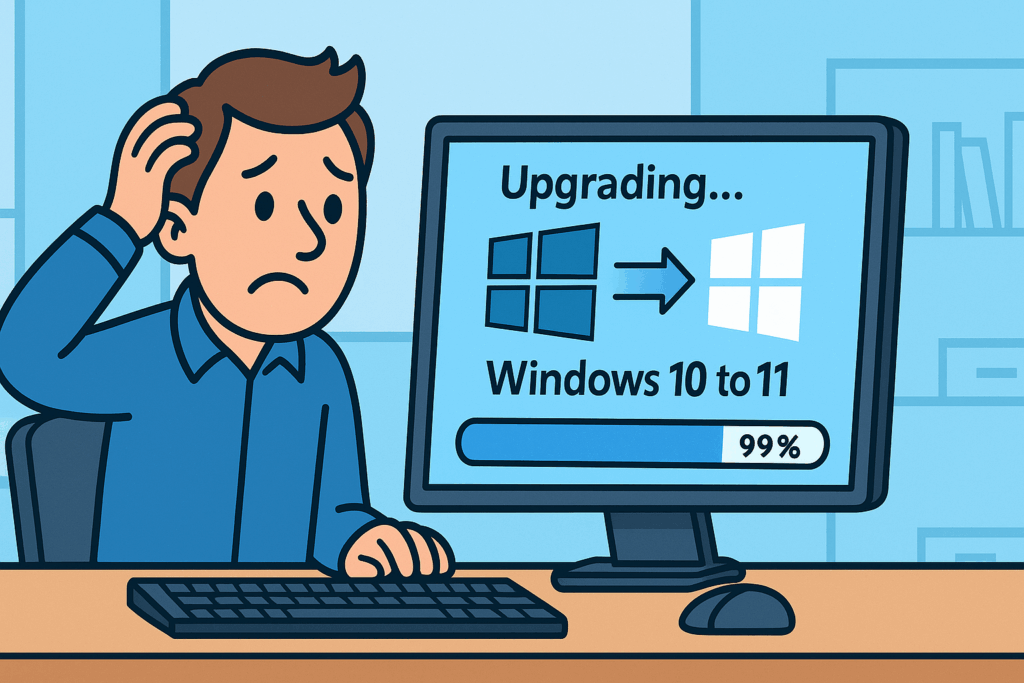
  • Beat the 99% Wall: Upgrade Windows 10 → 11 the Easy Offline Way (Do This Before Oct 5, 2025)

    When the upgrade sits at 99%… don’t panic. Go offline and run the ISO upgrade the smart way

    Windows 10 reaches end of life on Oct 5, 2025. After that, it won’t get security updates. If you stay on Win10, your machine is a sitting duck for malware and attackers. Don’t procrastinate.

    If Windows Update keeps failing—or hangs forever at 99%—use this clean, offline upgrade that skips the flaky “checking for updates” step.


    1) First, confirm your PC is Windows 11–ready

    Use Microsoft’s official checker:
    https://support.microsoft.com/en-us/windows/check-if-a-device-meets-windows-11-system-requirements-after-changing-device-hardware-f3bc0aeb-6884-41a1-ab57-88258df6812b

    Important: The most common blockers are the CPU and motherboard (TPM 2.0, UEFI/Secure Boot). If your device doesn’t meet Windows 11 requirements, it’s unsupported after Oct 5, 2025. Treat that Windows 10 PC as unsafe for internet use—either upgrade/replace the hardware, reassign it to offline tasks, or retire it.


    2) Prep (5–10 minutes)

    • Unplug non-essential USB devices (drives, printers, docks).
    • Ensure ≥30 GB free on C:.
    • Suspend BitLocker (if enabled): Control Panel → BitLocker → Suspend.
    • Temporarily disable third-party AV/VPN.
    • Clean Boot: msconfigServicesHide Microsoft servicesDisable all; Startup → disable everything.

    3) Reset Windows Update & appraiser caches (PowerShell)

    Open PowerShell as Administrator and run:

    net stop wuauserv
    net stop bits
    net stop cryptsvc
    
    ren "C:\Windows\SoftwareDistribution" SoftwareDistribution.old
    ren "C:\Windows\System32\catroot2" catroot2.old
    
    rd /s /q "C:\$WINDOWS.~BT"
    rd /s /q "C:\$WINDOWS.~WS"
    rd /s /q "C:\Windows\Panther"
    md "C:\Windows\Panther"
    
    net start cryptsvc
    net start bits
    net start wuauserv
    

    Then heal the image:

    DISM /Online /Cleanup-Image /RestoreHealth
    sfc /scannow
    

    4) Run the upgrade offline from ISO (no update checks)

    1. Download the official Windows 11 ISO (same edition/language/arch) from Microsoft.
    2. Right-click the ISO → Mount → note the drive letter (e.g., E:).
    3. Disconnect the network (unplug Ethernet / disable Wi-Fi).
    4. In elevated PowerShell, launch Setup with Dynamic Update disabled:
    Start-Process -FilePath 'E:\setup.exe' -ArgumentList '/auto upgrade /dynamicupdate disable /copylogs C:\$UpgradeLogs' -Verb RunAs -Wait
    

    (Optional quick blocker scan without upgrading):

    Start-Process -FilePath 'E:\setup.exe' -ArgumentList '/compat scanonly /dynamicupdate disable' -Verb RunAs -Wait
    

    5) If it still stalls

    • Drivers (most common):
      • Storage: Device Manager → Storage controllers → switch to Microsoft Standard controller (Update driver → Let me pick).
      • Display: use Microsoft Basic Display Adapter temporarily.
      • Remove extra language packs, old VPN clients, and heavy OEM utilities.
    • BIOS/Chipset: update from your PC maker’s support page.
    • Rerun the offline setup command.

    6) Pinpoint the exact blocker (2 minutes)

    If it fails again, run Microsoft SetupDiag and read the summary:

    mkdir C:\SetupDiag; cd C:\SetupDiag
    .\SetupDiag.exe /Output:C:\SetupDiag\SetupDiagResults.log
    
    • Codes like 0xC1900101-0x… usually name a driver (oem*.inf)—remove/roll it back and retry.
    • Dynamic-Update/Appraiser errors → repeat Step 3 and ensure you’re truly offline with /dynamicupdate disable.

    7) After success

    • Re-enable BitLocker, AV/VPN, and normal startup apps.
    • Reconnect the network and run Windows Update to pull fresh drivers and features.

    © 2012–2025 Jet Mariano. All rights reserved.
    For usage terms, please see the Legal Disclaimer.

error: Content is protected !!