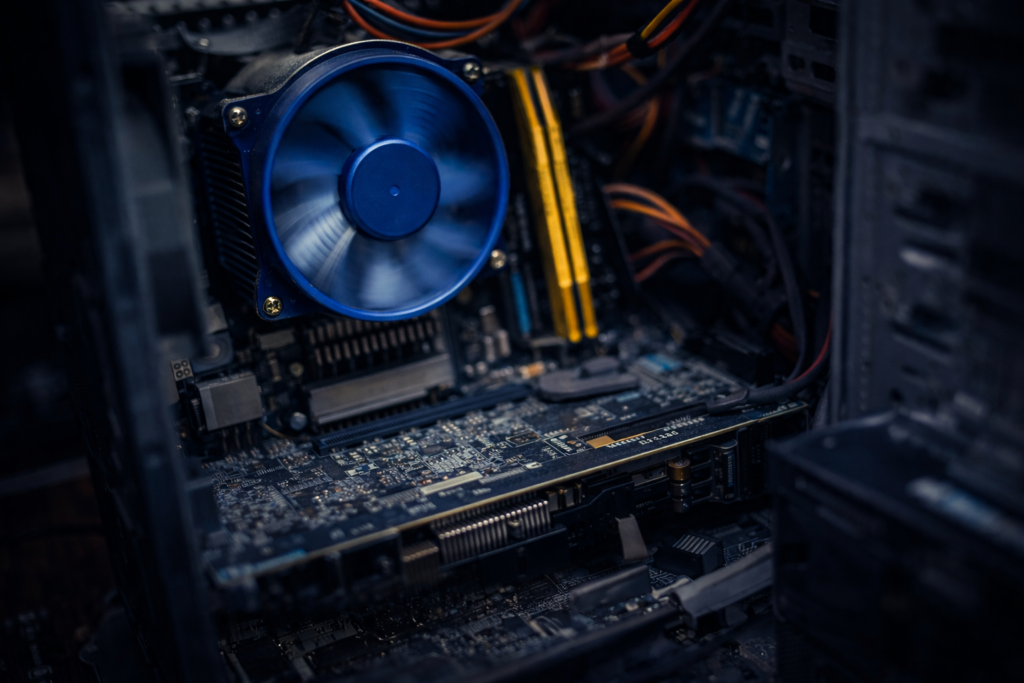
Most system failures don’t begin in Windows. They begin deeper, where firmware, drivers, and hardware quietly decide whether the OS will be allowed to run.
Intro
When a system reboots unexpectedly, freezes during a video call, or crashes the moment a camera turns on, Windows is usually the first thing blamed. But in most real-world cases, the operating system is only the messenger. The real problem lives below Windows, in layers most people never see until something breaks.
Over the years, I’ve learned that stability is not something you install. It’s something you negotiate between hardware, firmware, drivers, and the operating system, all trying to work together under load.
The invisible stack beneath Windows
Modern endpoints are layered systems.
Below Windows 11 sits firmware, BIOS, chipset drivers, GPU drivers, and kernel-mode components that operate outside the visibility of most logging tools. These layers handle power management, graphics acceleration, memory access, and hardware interrupts. When they disagree, Windows doesn’t always get a vote.
A failure in these layers doesn’t always generate a blue screen. Sometimes the system simply resets. From the outside, it looks random. Underneath, it’s not.
Why Windows 11 gets blamed
Windows 11 sits at the intersection of modern hardware acceleration and modern applications. Tools like Microsoft Teams, browsers, and Office apps make heavy use of GPU pipelines, video encoders, and camera drivers.
When something goes wrong at that boundary, the crash surfaces when the app is launched, the camera turns on, or a video stream initializes. Windows appears guilty because it’s present when the failure occurs, but the fault often belongs to a driver, firmware interaction, or hardware acceleration path that Windows merely exposed.
Why visibility tools don’t always catch it
Tools like Sysmon are excellent at recording what happens inside the operating system. They act like a flight recorder for processes, network connections, and file activity.
But Sysmon can’t log what never reaches the OS.
A reboot triggered by firmware, a GPU driver reset, or a kernel-mode failure can occur before logging completes. From an administrator’s perspective, it feels like the system went silent without warning. In reality, the failure happened below the level where logs exist.
The thin line between stable and broken
Stability often comes down to small decisions.
A BIOS update here. A GPU driver change there. Hardware acceleration enabled or disabled in a single application.
None of these changes look dramatic on their own, but together they determine whether a system runs quietly for months or reboots under pressure. That line between stable and broken is thinner than most people realize.
What I’ve learned
When troubleshooting modern Windows systems, I no longer ask, “What did Windows do wrong?” first.
I ask:
What changed below the OS
Which drivers are involved
What hardware path is being exercised
Whether the failure happens under load or acceleration
More often than not, the answer reveals itself there.
Final thought
Windows 11 is rarely the villain in these stories. It’s the surface where deeper tensions finally show themselves.
Understanding that difference changes how you troubleshoot, how you update, and how you design systems meant to stay online.
Most Windows 11 instability doesn’t live in the OS itself, but at the edges where hardware, drivers, and applications meet.
Understanding Failure at the Boundaries
Why this post exists
When something breaks after a Windows 11 update, the operating system is usually the first thing blamed.
That reaction is understandable. It is also often wrong.
Most Windows 11 issues I’ve seen in production environments were not caused by Windows itself, but by interactions at the boundaries — drivers, firmware, graphics acceleration, and modern hardware pipelines colliding under load.
This post is about recognizing that pattern before making changes you can’t easily undo.
Windows 11 changed the execution model
Windows 11 didn’t just refresh the UI. It tightened and modernized how the system interacts with hardware.
Notable shifts include:
heavier GPU offloading
deeper integration with modern drivers
stricter timing and power management
increased reliance on hardware acceleration
These changes improved performance and security — but they also exposed weaknesses that were previously hidden.
Where failures actually occur
Most Windows 11 instability I’ve seen does not originate in the OS core.
It shows up at the edges:
camera pipelines invoking GPU acceleration
browsers rendering complex content
collaboration tools engaging media stacks
document editors interacting with graphics layers
When these systems overlap, failure is rarely clean.
The result can look dramatic:
sudden reboots
frozen screens
applications triggering system instability
But the OS is often just the messenger.
Why blaming the OS is tempting
Blaming Windows feels productive because it is visible and recent.
But doing so can lead to:
unnecessary registry changes
disabling core protections
rolling back updates prematurely
introducing instability elsewhere
Experienced engineers pause here.
They ask a different question: “What interaction just occurred?”
A real-world pattern
In several recent incidents, systems rebooted only when:
the camera was enabled
a browser rendered media-heavy pages
a document triggered graphics rendering
The same machines were otherwise stable.
That pattern points away from Windows itself and toward:
GPU drivers
hardware acceleration paths
firmware timing
vendor-specific optimizations
The fix is rarely global. It is almost always surgical.
Why restraint matters
Windows 11 gives us many levers:
registry overrides
advanced graphics settings
feature toggles
Just because a lever exists does not mean it should be pulled.
Sometimes the most correct decision is:
identify the root cause
mitigate user impact
document the behavior
wait for vendor correction
Stability is not always achieved by action. Sometimes it is preserved by restraint.
What Windows 11 is actually doing well
Despite the noise, Windows 11 has proven to be:
more secure by default
more consistent under load
better integrated with modern hardware
less tolerant of outdated assumptions
Those are strengths, not weaknesses.
They require us to think more holistically about the stack.
The lesson Windows 11 keeps teaching
Modern systems fail at the seams.
Operating systems, drivers, firmware, and applications now behave as a single organism.
When one part misbehaves, symptoms surface elsewhere.
The job is not to assign blame quickly. The job is to understand interaction.
Final reflection
Windows 11 didn’t break our environments.
It revealed where we were already fragile.
Once you see that pattern, troubleshooting becomes calmer, more precise, and far less reactive.
One of my favorite seasons of my life. Serving the city, keeping critical systems alive, and learning the foundations that shaped who I am as an engineer today. Every console screen taught me something new and every problem strengthened my desire to help others through technology.
My Essential IT Troubleshooting Guide
In every company I have worked for, the tools that saved the day were not fancy dashboards but simple commands and fundamentals I could trust. This is my personal troubleshooting arsenal, written so even a non technical reader can follow the logic behind what I do.
Each section answers three things • What it is • Why it matters • How I use it in real life
Name Resolution Basics
A record
What • A record is a phone book entry that says “this name belongs to this IP address.”
Why • Users remember names better than numbers. If the A record is wrong or missing, they land in the wrong place or nowhere.
How I use it • When a site is not loading, I ping the name and check if the IP address matches what we expect. • If it does not, I fix the A record in DNS and wait for it to replicate.
CNAME
What • A CNAME is a nickname that points one name to another name.
Why • It lets you move services without breaking users. The public name stays the same while the target changes behind the scenes.
How I use it • For services like autodiscover or app portals, I often see CNAMEs that point to Microsoft or another provider. • When something breaks after a cutover, CNAMEs are one of the first things I verify.
DNS
What • DNS is the global phone book that turns names into IP addresses.
Why • If DNS fails, everything feels broken. Browsers, Outlook, file shares, all of them depend on DNS.
How I use it • I run nslookup name.company.com to see which DNS server is answering and what IP it returns. • If users in one site can reach something and other users cannot, I compare DNS answers between locations.
Hosts file
What • The hosts file is a tiny local phone book on the computer.
Why • It overrides DNS for that machine. One bad line can send traffic to the wrong place.
How I use it • Location on Windows
C:\Windows\System32\drivers\etc\hosts
• I open it with Notepad as administrator. • If someone hard coded a testing IP and forgot about it, I comment it out or remove it, then flush DNS.
Flush cache
ipconfig /flushdns
Nbtstat and TCP IP
What • Nbtstat is an older tool for NetBIOS name resolution. • Hard coded TCP IP means a manual IP instead of DHCP.
Why • Nbtstat helps when legacy name lookups act strange. • Hard coded IPs can cause conflicts or make VLAN changes painful.
How I use it • nbtstat -n to see local NetBIOS names. • nbtstat -c to see the name cache. • When I find static IPs on client machines, I document them and move them to DHCP reservations so the network is easier to manage.
Network control panel shortcut
I still use this every week
From Run
ncp.cpl
It opens the Network Connections window so I can quickly check adapters, enable or disable, or look at IPv4 settings.
DHCP Essentials
What • DHCP hands out IP addresses, gateways and DNS to clients.
Why • If DHCP fails, users cannot get on the network or suddenly have duplicate addresses.
Best practices • Use at least two DHCP servers where possible. • Define scopes with correct gateway and DNS. • Use reservations for printers and key servers.
Commands I use on clients
ipconfig /release ipconfig /renew
If a user can reach the internet but not internal resources, I check that DNS from DHCP is internal and not a public resolver.
MX, Autodiscover and Mail Flow
MX record
What • MX tells the world which server receives mail for your domain.
Why • If MX points to the wrong place or has a low priority backup you forgot, email can vanish or queue.
How I use it • I use MXToolbox to check MX records and verify that they point to Exchange Online or the correct email gateway.
Autodiscover
What • Autodiscover tells Outlook where to find the mailbox and settings.
Why • A broken autodiscover record means constant password prompts or profile creation failures.
How I use it • I verify the Autodiscover CNAME or SRV record. • I test with Outlook connectivity tools or Test-OutlookConnectivity when available.
Hunting spam engines and bad SMTP
Where malware hides • In browser extensions • In Outlook add ins • In unknown services or scheduled tasks that send mail through SMTP
How I clean it without reimaging • Check Outlook add ins and disable anything suspicious. • Run msconfig and Task Manager to review startup items and tasks. • Review SMTP logs on the server to see which host is sending unexpected traffic.
Certificates and SSL in Hybrid Environments
Internal web apps depend on trusted certificates so browsers know the site is safe. When an SSL expires, internal apps stop working and Chrome or Edge will show warnings.
Why we create new SSLs • Internal web apps must be trusted. • Intranet portals and legacy apps often stop working when an internal CA certificate expires. • External issued certs from DigiCert or GoDaddy are trusted by browsers.
Where I keep it • C:\Certs or another controlled folder • Never leave certificates scattered in Downloads
Core servers • I open Task Manager with Ctrl Shift Esc • File, Run, then mmc • Add the Certificates snap in and import there Or I import directly with PowerShell.
Machine Trust Relationship Problems
When Windows says “the trust relationship between this workstation and the primary domain failed,” the computer account and the domain no longer agree.
On a traditional domain • Disable LAN and WiFi • Log in using cached credentials • Reset the local admin password if needed • Disjoin from the domain and put it in a workgroup • Reboot • Join it back to the domain
For Azure AD joined devices
Check status
dsregcmd /status
If broken
dsregcmd /leave
Then re join from Settings under Access work or school.
RDP Session Cleanup
Sometimes users cannot remote into their office desktop because a stale session is still connected.
After that, they can reconnect without rebooting the server.
Active Directory Tools
ADSIEdit
What • A low level editor for Active Directory objects.
Why • Last resort for fixing broken attributes or lingering records when normal tools cannot reach them.
How I use it • Only with full backups and a clear change plan. • I use it to clean up orphaned objects or legacy settings left behind.
Event Viewer
What • The black box recorder of Windows.
Why • Every blue screen, login failure, replication problem and service crash leaves a trace here.
How I use it • eventvwr.msc • I focus on System and Directory Service logs on domain controllers, and Application logs on servers hosting apps.
FSMO Roles
What • Flexible Single Master Operations are special AD roles for schema, naming, PDC, RID and infrastructure.
Why • These make sure there is one source of truth for sensitive changes.
Best practice • Know exactly which DC holds each role. • Protect those DCs like crown jewels.
If a FSMO owner is gone forever • You can seize the role to a healthy DC using ntdsutil. • After seizing you never bring the old DC back online.
This is rare but every senior engineer should know the process in theory.
AD and Entra ID Health
On premise AD health
dcdiag repadmin /replsummary repadmin /showrepl
I always confirm • DNS is correct • SYSVOL is in sync • Time is correct and within a few minutes across all DCs
Entra ID health
Connect-MgGraph Get-MgUser Get-MgDirectoryAudit
I check • Sign in logs for failures • Conditional Access for blocked locations • Device compliance for machines that suddenly appear non compliant
AD controls computers and users on site. Entra controls cloud identity and device trust. In a hybrid world, both must be healthy.
Azure and Terraform
Azure CLI read only commands
az login az account show az group list az vm list az storage account list
These tell me what exists without changing anything.
Terraform for infrastructure as code • Initialize the directory terraform init • Format terraform fmt • Validate terraform validate • Plan terraform plan
Nothing changes until terraform apply is run. For interviews, being comfortable with init, plan and validate already shows good understanding.
Microsoft 365 Services
Group Policy
Purpose • Central control of security and settings for on premise joined machines.
How I create it gpmc.msc • New GPO • Edit with the settings I want • Link to the correct OU
Universal Print
What • Cloud based printing that removes the need for classic print servers.
Why • Easier management for hybrid and remote users.
I register printers in Universal Print and assign permissions based on groups, so users can get printers automatically.
SharePoint Online
Steps I follow • Go to Microsoft 365 admin center • Open SharePoint admin • Create a new site • Assign owners and members • Set sharing and retention policies
This becomes the central place for team documents and intranet content.
OneDrive and Data Migration
OneDrive • Sync client installed on machines • Known Folder Move for Desktop, Documents and Pictures • Version history to protect from mistakes and ransomware
Migrating data • I prefer SharePoint Migration Tool or Mover. • I clean old data first so I do not carry garbage into the cloud. • I communicate to users what will move and what will not.
Why This Arsenal Matters
These are the tools I have relied on in city government, banks, energy drinks, and manufacturing. They are not fancy, but they work.
Every time I help a user reconnect, restore a service, or clean up a broken configuration, I am really doing three things
• Protecting the company and its data • Supporting my teammates so they are not alone in the fire • Honoring the gift God gave me to understand and fix complex systems
This arsenal is how I serve. Whether I am helping a small office or a multi site enterprise, the pattern is the same ask good questions, run the right checks, fix the root cause, and leave clear notes so the next engineer can see the path.
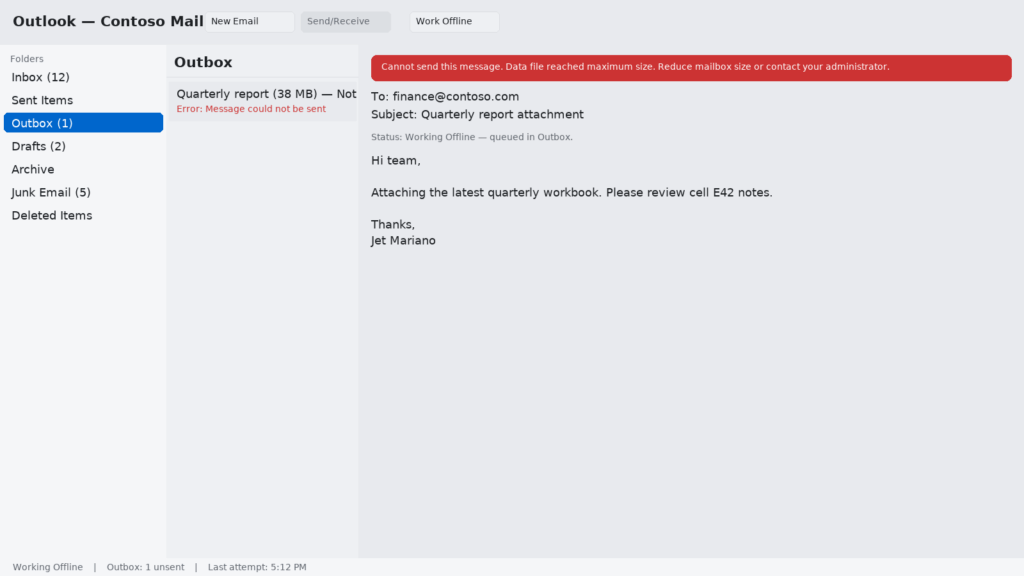
Outbox (1) and a red error banner—typical signs Outlook can’t send because the local data file (OST/PST) hit the size limit or the client is Working Offline.
Intro
When mail matters, guessing hurts. This is the quick way I fix the three big Outlook problems—won’t send, can’t search, won’t connect—with steps for employees and deeper checks for admins.
The straight line
Rule #1: Prove if it’s your Outlook, your profile, or the service—then act. Don’t change ten things; follow the flow.
For employees (5 fixes you can do safely)
Compare with Outlook on the web
Open your browser → sign in to outlook.office.com.
If web mail works, your account is fine; the issue is this device/Outlook app.
Check the basics
Make sure Work Offline isn’t turned on.
Restart Outlook (fully exit from the tray), then restart the computer.
Trim the Outbox: very large attachments (>20–25 MB) can block the queue.
Search not finding results?
Windows: Outlook → File → Options → Search → Indexing Options → Rebuild. Give it time.
Mac: System Settings → Siri & Spotlight → ensure Mail & Messages are allowed. If needed, add then remove your Outlook profile folder from Spotlight Privacy to force a re-index.
Disable add-ins (quick test)
Windows: File → Options → Add-ins → COM Add-ins → Go… → uncheck all (especially meeting/CRM add-ins).
Mac (New Outlook): Get Add-ins → My add-ins → disable. Re-test.
Free up mailbox space
Empty Deleted Items and Junk, clear Sync Issues folders, and archive old Sent Items. Low free space = slow Outlook.
If mail works on the web but not in the app after these steps, it’s a profile or device issue—hand off to IT or continue with the admin flow below.
For IT pros (targeted triage)
1) Scope & signal
Service or client? If OWA works and multiple users in the site are fine, it’s local.
Status bar messages matter: “Trying to connect…”, “Updating this folder…”, “Need password”, “Limited connectivity”—write them down.
2) Profile & connectivity
New profile (Windows): Control Panel → Mail (Microsoft Outlook) → Show Profiles… → Add → set Prompt for a profile and test.
Connection Status (Windows): Ctrl + right-click the Outlook tray icon → Connection Status; confirm Auth/Protocol and server round-trip.
Cached Exchange setting: File → Account Settings → Account → Change… → move the mail to keep offline slider down (e.g., 6–12 months) and retest.
3) Search
Windows Search service running? Rebuild from Indexing Options and ensure Outlook is in the index list.
OST health: If search is corrupt or folders are out of sync, close Outlook, rename the OST, reopen to rebuild.
4) Add-ins & startup
Safe mode test (Windows): Start Outlook while holding Ctrl (you’ll be asked to start in safe mode). If that works, remove add-ins (Teams/Zoom/CRM are usual suspects).
Reset the navigation pane (Windows): Run command box and reset the nav pane if views are corrupted (as an IT step).
5) Credentials & auth
Windows Credential Manager: remove stale Office/Outlook creds; relaunch and re-auth.
Modern Auth prompts stuck? Close all Office apps; kill background “Office” processes; try again.
6) Calendar & send issues
Delegate/Shared mailbox problems:** verify Full Access/Send As and re-map the mailbox.
Rules causing loops: export, disable all, re-test send/receive.
Stuck meetings: clear Outbox, switch to Online Mode briefly, send, switch back to Cached.
7) Tools that save time
Microsoft Support and Recovery Assistant (SaRA): excellent for profile, activation, and connection repairs.
Message Trace (Exchange/Defender portals): confirm delivery path before blaming the client.
8) When to rebuild or repair
New profile fixed it? Keep it and retire the old one.
Office repair (Quick Repair, then Online Repair) if multiple Office apps are unstable.
60-second decision tree
OWA works?
No → service/network issue; escalate.
Yes → client/device issue → continue.
Safe mode works?
Yes → disable add-ins until stable.
No → new profile.
Still failing after new profile?
Check Credentials, Cached slider, OST rebuild.
If send only fails for shared/delegate mailbox → permissions or transport rules.
Search still blank?
Rebuild index (Windows), verify Spotlight (Mac), rebuild OST.
Prevent the repeat (settings that help)
Mailbox hygiene: retention/archiving for Sent & large attachments.
Keep add-ins lean: only what the team truly uses.
Known-good profile image: for kiosk/reimaging scenarios.
Network indicators: if Wi-Fi is flaky, Outlook shows it first—fix the Wi-Fi.
One place for help: a short “How to open OWA + report exact error text + timestamp” guide pinned for staff.
Final reflection — why this approach won’t go away
Clarity beats tinkering. OWA tells you if it’s the account or the app.
Profiles are perishable. Rebuilding is faster than endless registry spelunking.
Add-ins are the usual villains. Test in safe mode first.
Search takes time. Reindex once, then let it finish; don’t keep poking.
Document the path. The same steps teach juniors and calm frustrated users.
For employees — Data file full? (PST/OST ~50 GB default)
Symptoms: messages stuck in Outbox, sync never finishes, warnings about “data file reached maximum size.”
Fix (Windows Outlook):
Outlook → File → Info → Tools → Mailbox Cleanup
Empty Deleted Items / Junk.
View Mailbox Size → delete/archive biggest folders (Sent Items is usually #1).
Search for big attachments: in the search bar choose Size → Huge (> 1 MB) or Very Large (> 5 MB) and delete/move.
Data file compact:File → Account Settings → Account Settings → Data Files (tab) → select your account’s Outlook Data File → Settings → Compact Now.
If you use Exchange/Business account: File → Account Settings → Account Settings → Change → slide “Mail to keep offline” down to 6–12 months, then restart Outlook (older mail stays available in OWA).
If OWA sends fine but the app still can’t after this, hand it to IT (profile rebuild or archive needed).
For IT pros — PST/OST limits & remediation
Default limit: modern Outlook uses ~50 GB per PST/OST (configurable via policy). Near the cap (there’s a warn threshold), send/receive fails and users see “data file has reached maximum size.”
Triage: confirm the user’s Data Files size (File → Account Settings → Account Settings → Data Files), and whether the profile caches shared mailboxes (common OST bloat).
Remediation options (prefer in this order):
Mailbox hygiene / archiving: enable Online Archive (Exchange Online) and apply retention to move old items automatically.
Reduce cache depth: set Mail to keep offline to 3–12 months; leave older mail online.
Shared mailbox strategy: uncheck Download shared folders (Account Settings → More Settings → Advanced) for very large shared mailboxes, or add them as additional mailboxes without caching.
Compact / rebuild OST: after cleanup, compact; if corruption suspected, close Outlook, rename the OST, relaunch to rebuild.
Policy keys: you can raise the max size via policy/registry (also set the warn threshold) but Microsoft guidance is to favor Online Archive over very large OST/PST files.
Tell-tale errors/messages: send stuck in Outbox, “Data file reached maximum size,” frequent sync loops; OWA sends normally.
What I hear now
Start with service vs. client (OWA).
Safe mode, then add-ins.
If in doubt, new profile.
Index once, wait.
Be kind: Outlook issues feel personal to users—steady process helps them breathe.