Tag: Windows Server

  • How to Export and Audit Active Directory GPOs Using Native PowerShell (Step-by-Step)

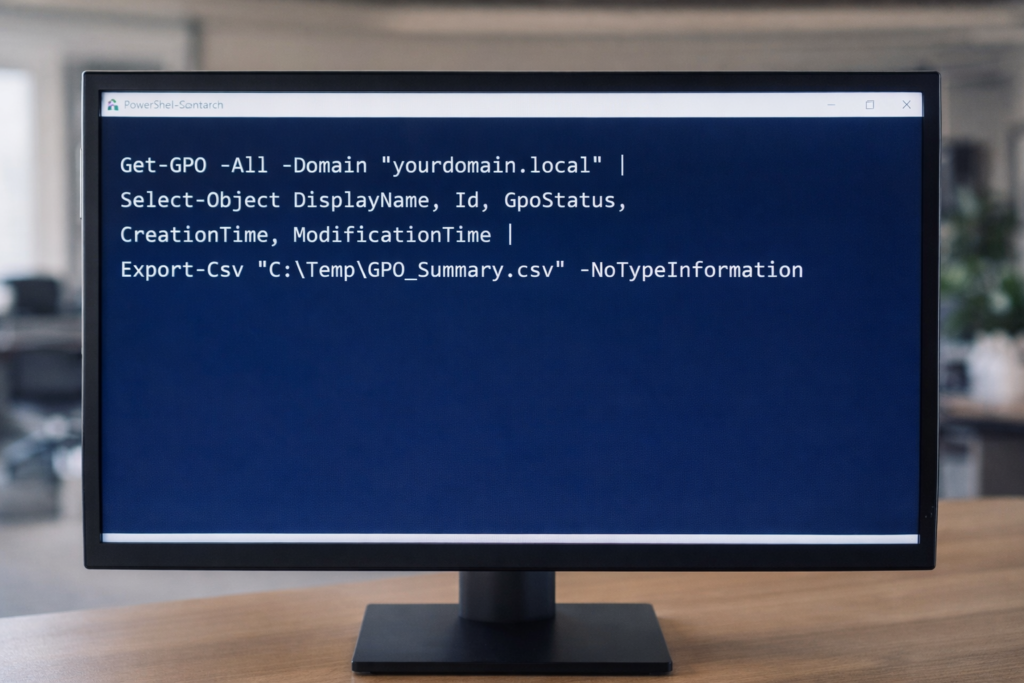
    PowerShell export of Active Directory Group Policy Objects using native Get-GPO and Export-Csv commands to establish a baseline inventory before infrastructure changes.

    Maintaining visibility into Group Policy Objects (GPOs) is critical before domain consolidation, tenant migration, or infrastructure modernization.

    Below are seven native PowerShell commands used to generate a full GPO inventory, validate configurations, and export audit-ready reports.

    All commands use built-in GroupPolicy modules — no third-party tools required.


    1. Export GPO Summary Inventory

    Exports high-level metadata for all GPOs in the domain.

    Get-GPO -All -Domain "yourdomain.local" |
    Select-Object DisplayName, Id, GpoStatus, CreationTime, ModificationTime |
    Export-Csv "C:\Temp\GPO_Summary.csv" -NoTypeInformation


    This provides:
    • GPO Name
    • GUID
    • Status (Enabled/Disabled)
    • Creation Date
    • Last Modified Date


    2. Generate Full XML Reports for All GPOs

    Creates detailed configuration exports for forensic or migration analysis.

    New-Item -ItemType Directory -Path "C:\Temp\GPOReports" -Force
    
    Get-GPO -All -Domain "yourdomain.local" |
    ForEach-Object {
        Get-GPOReport -Guid $_.Id -ReportType XML -Path "C:\Temp\GPOReports\$($_.DisplayName).xml"
    }


    XML reports include:
    • Security settings
    • Registry policies
    • Administrative templates
    • Computer/User configuration details


    3. Generate Executive-Readable HTML Report

    Get-GPOReport -All -Domain "yourdomain.local" -ReportType HTML -Path "C:\Temp\All_GPOs_Report.html"


    Useful for:
    • Leadership review
    • Change control documentation
    • Audit preparation


    4. Identify Fully Disabled GPOs

    Get-GPO -All -Domain "yourdomain.local" |
    Where-Object {$_.GpoStatus -eq "AllSettingsDisabled"} |
    Select DisplayName, Id, GpoStatus |
    Export-Csv "C:\Temp\Disabled_GPOs.csv" -NoTypeInformation


    Helps identify cleanup opportunities before migration.


    5. Validate a Specific GPO (Live Proof Command)

    Get-GPO -Name "Default Domain Policy" -Domain "yourdomain.local"


    Useful for:
    • Live validation
    • Troubleshooting
    • Demonstrating configuration integrity


    6. Export WMI Filters

    Get-GPWmiFilter -Domain "yourdomain.local" |
    Select Name, Description |
    Export-Csv "C:\Temp\WMI_Filters.csv" -NoTypeInformation


    Important when:
    • GPOs are scoped using OS filters
    • Planning domain consolidation


    7. Create a Baseline Snapshot Before Major Change

    Get-GPO -All -Domain "yourdomain.local" |
    ForEach-Object {
        Get-GPOReport -Guid $_.Id -ReportType HTML -Path "C:\Temp\Baseline\$($_.DisplayName).html"
    }


    This creates a point-in-time snapshot for rollback or comparison.


    Why This Matters

    Before:

    • Domain merge
    • Tenant consolidation
    • Intune migration
    • Security hardening
    • Infrastructure cleanup

    You need visibility.

    PowerShell provides:
    • Repeatability
    • Transparency
    • Audit defensibility
    • No dependency on external tooling

    © 2012–2026 Jet Mariano. All rights reserved.
    For usage terms, please see the Legal Disclaimer.

  • DHCP is Boring Until It is Not

    When DHCP works, nobody notices.
    When it fails, everything looks broken.

    DHCP stands for Dynamic Host Configuration Protocol.

    At its simplest, DHCP answers one question for every device on a network:

    “How do I join?”

    When a computer connects to a network, it does not yet have:

    • an IP address
    • a subnet mask
    • a default gateway
    • DNS servers

    DHCP provides all of that automatically.

    Without DHCP, every device would need to be configured manually. That might work for a lab. It does not work in the real world.


    Why we need DHCP

    DHCP exists for one reason: scale.

    In a modern environment:

    • users move between desks
    • laptops roam between VLANs
    • devices reboot
    • leases expire
    • networks change

    DHCP ensures that devices can leave and rejoin the network without human intervention.

    When DHCP works, nobody notices.
    When it fails, everything looks broken.


    How DHCP works (plain language)

    When a device boots or connects to a network, it asks:

    “Is there a DHCP server out there?”

    If one responds, the device is given:

    • an IP address
    • a subnet mask
    • a default gateway
    • DNS servers
    • a lease time

    That information is temporary. It belongs to the device only for the length of the lease.


    What is a DHCP lease

    A DHCP lease is the amount of time an IP address is assigned to a device.

    Leases matter more than people think.

    If leases are:

    • too long, stale devices linger
    • too short, networks churn and devices constantly renew

    In most enterprise environments, lease duration is a balancing act between stability and flexibility.


    What are DHCP reservations and why we use them

    A DHCP reservation is a fixed IP address tied to a specific MAC address.

    The device still uses DHCP, but it always receives the same IP.

    Reservations are commonly used for:

    • servers
    • printers
    • network appliances
    • systems referenced by firewall rules

    Reservations give consistency without abandoning DHCP.

    This is often safer than static IPs configured directly on the device.


    Installing DHCP on Windows Server (high level)

    On Windows Server, DHCP is installed as a server role.

    The basic steps are:

    • add the DHCP Server role
    • authorize the server in Active Directory
    • create a scope
    • define options like gateway and DNS
    • activate the scope

    Once installed, the DHCP server listens for requests and starts issuing leases.


    ipconfig /release and ipconfig /renew explained

    These two commands are often misunderstood.

    ipconfig /release
    Tells the computer to give up its current IP address.

    ipconfig /renew
    Forces the computer to request a new lease from DHCP.

    Together, they are used to:

    • force a fresh DHCP request
    • test DHCP reachability
    • validate scope configuration
    • recover from stale leases

    They do not fix DHCP.
    They test it.


    Common DHCP problems in real environments

    Most DHCP issues do not announce themselves clearly.

    Common symptoms include:

    • slow logins
    • “no internet” complaints
    • intermittent connectivity
    • devices that work after reboot
    • systems that fail only in certain VLANs

    Common root causes include:

    • exhausted scopes
    • incorrect gateway or DNS options
    • multiple DHCP servers on the same network
    • relay misconfiguration
    • firewall rules blocking DHCP traffic
    • lease durations that are too aggressive

    How network engineers usually get misled

    DHCP problems often masquerade as:

    • DNS failures
    • authentication issues
    • Windows bugs
    • application problems

    Because DHCP is invisible when it works, it is often checked last.

    Experienced engineers check it early.


    How to troubleshoot DHCP calmly

    A disciplined approach usually looks like this:

    • confirm the client received an address
    • verify the subnet and gateway
    • check lease time and renewal behavior
    • confirm the DHCP server sees the request
    • validate there is only one authoritative DHCP source

    The goal is not to “fix fast,” but to understand what the client believes is true.


    Why DHCP failures feel chaotic

    DHCP sits at the intersection of:

    • networking
    • identity
    • DNS
    • routing

    When it breaks, everything downstream behaves unpredictably.

    That is why DHCP is often described as boring — until it isn’t.


    Final reflection

    The most important infrastructure services are the quiet ones.

    They do not call attention to themselves.
    They simply allow everything else to function.

    DHCP is one of those services.

    When it fails, it reminds us how much we rely on what we rarely see.

    © 2012–2026 Jet Mariano. All rights reserved.
    For usage terms, please see the Legal Disclaimer.

error: Content is protected !!