Author: jetnmariano

  • When the Strong Get Tired: Finding Strength in the Silence

    Intro:

    I’ve always been the strong one—at home, at work, in faith. The one people come to for answers, comfort, and solutions. But lately, I’ve been sitting in a kind of silence that echoes deeper than I expected. When the texts stop, when the calls go unanswered, when temple appointments fade into the background—I start to feel it: even the strong get tired.

    This week, I found myself in a strange place—surrounded by truth, but pierced by silence. I sat at my desk feeling the weight of isolation. No messages, no check-ins, no unexpected “Hey, how are you?” from anyone. It felt like my soul was stuck in a paused moment, waiting for a response that never came.

    But I remembered Alma 26:27:

    “Now when our hearts were depressed, and we were about to turn back, behold, the Lord comforted us…”

    Even Ammon and his brethren—men of God—were depressed. These weren’t weak men. These were spiritual giants who had seen miracles, preached the gospel with power, and endured rejection. And still, they felt what I’m feeling now.
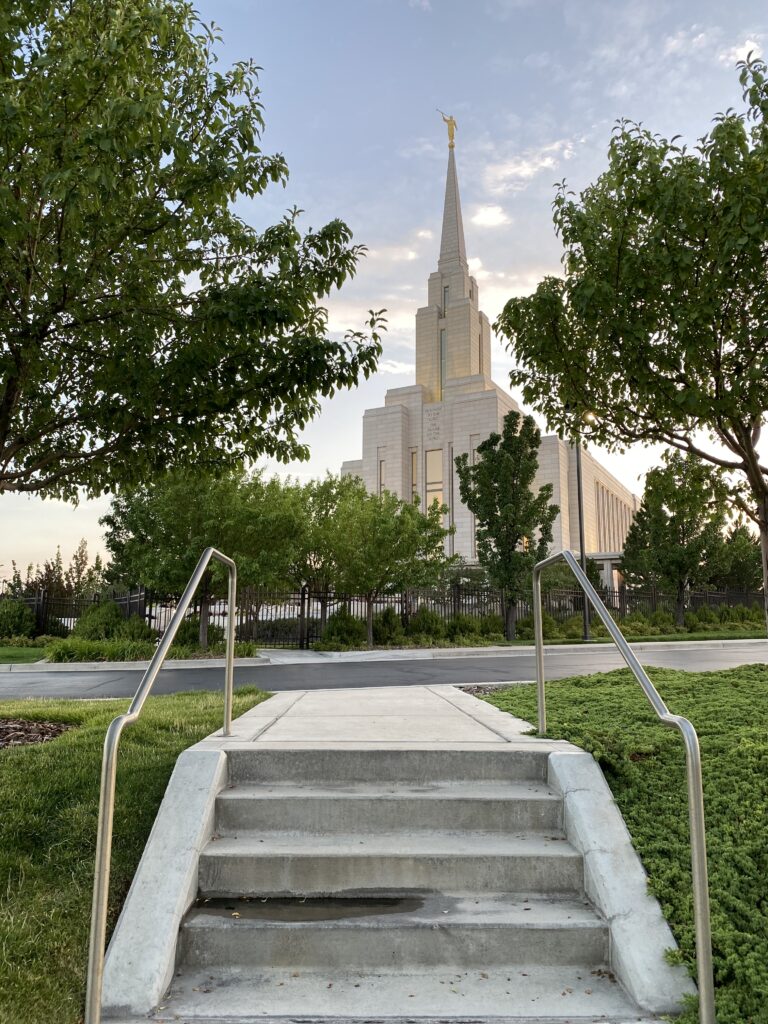
    Photo I took of the Oquirrh Mountain Utah Temple a few weeks ago. It’s calling me back.

    Tomorrow, I’ll walk into the Oquirrh Mountain Temple after more than a month. I’m not going to ask for miracles. I’m going because I need to be in the presence of Heaven. I need to let my spirit breathe again. I need to feel my Father’s love, even when words fail.

    Quote for Reflection:

    “Your silence is deafening.” — The Fault in Our Stars
    But maybe… God’s silence isn’t absence. It’s invitation.


    “When Silence Speaks” — Oquirrh Refrain

    When silence came like falling snow,
    And all the noise had ceased to be,
    I felt a pull, a quiet glow—
    The temple gates were calling me.

    At Oquirrh’s base I bowed my head,
    Not for answers—just for peace instead,
    A quiet place where tears are shed,
    And unseen angels softly tread.

    Inside the stillness, soft and wide,
    The Celestial Room embraced my soul—
    I reached to write, with God as guide,
    Yet someone’s name first filled the scroll.

    No knock, no text, no morning sound,
    Yet still I stood with faith intact.
    Some bonds may sleep beneath the ground,
    But truth remains, and light comes back.

    Not every path must be explained,
    Not every bond can bear a name—
    But in that light, I still remained,
    And walked back out, no longer flame… but flame.

    A Gentle Addition (Post-Poem):

    Before I left for the temple that day, my hand wrote a name I didn’t expect. It reminded me that sometimes God places people in our hearts not by accident, but by design. I won’t name them here. I’ll just say this: I’m grateful for the quiet nudges that guide us back to love—even when words are few and time is short.

    Sometimes, the name written in silence is the one Heaven hears the loudest.

    © 2012–2025 Jet Mariano. All rights reserved.

    For usage terms, please see the Legal Disclaimer.

  • Outages happen. Learn how IT pros can stay cool under pressure and resolve system issues quickly.

    Even techs get stuck. Yesterday reminded me that sometimes, the person everyone calls for help also hits a wall. I was working remotely via VPN, ready to assist a teammate, when my own RDP session froze on “Please wait.” I couldn’t move, couldn’t connect, and couldn’t help. It was like watching a surgeon get locked out of the operating room.

    What Happened:
    From home, I connected to VPN and tried to RDP into my office desktop, but I got stuck at the “Please wait” screen. VPN was up, but Remote Desktop was frozen. I launched a Command Prompt window and ran:

    query session /server:xx.xx.xx.xx
    

    Note: IP address redacted for security.

    Here’s a redacted example of the output:

     SESSIONNAME       USERNAME       ID   STATE   TYPE
     services                          0    Disc    
     rdp-tcp#16        johdoe          1    Active  rdpwd
     console           johdoe          2    Conn    wdcon
    

    From the list above, I saw that ID 1 was in a Disc (Disconnected) state — an orphaned session that blocked me from connecting normally.

    To fix it, I ran:

    reset session 1 /server:xx.xx.xx.xx
    

    After a few seconds, I reconnected via RDP successfully — and the session loaded instantly.

    Conclusion:
    This was a humbling moment. VPN doesn’t mean much if a stuck session locks you out. Knowing how to query session and reset session remotely is like having a digital master key. When the helper needs help, this trick puts you back in the game.

    © 2012–2025 Jet Mariano. All rights reserved.

    For usage terms, please see the Legal Disclaimer.



  • Father’s Day Lessons: Tech, Faith, and Family in Today’s World

    Father’s Day this year came with more than just cards and hugs—it came with quiet reflection, a few emotional flashbacks, and a full heart.

    After work on Friday, I found myself doing something I rarely stop for: slowing down. I cleaned the house top to bottom, did laundry—including fresh bedding—and made sure everything smelled just right. I even went grocery shopping with purpose… because my wife, my son, and his family were driving from out of state to visit me.

    I had to make it special.


    Saturday Night: Baked Salmon & Family Time
    That evening, I surprised them with something I’m still learning to master—cooking. I baked fresh salmon for dinner. I’m not usually known for my kitchen skills, but there was something sacred about preparing a meal with my own hands for the people I love.

    We gathered at the table, shared stories, laughed over seconds, and created a memory I didn’t know I needed.


    Father’s Day breakfast I made for my wife and grandson—blueberry protein shake, pancakes with fresh fruit, and a Core Power finish. Even in silence, I chose to serve with love.

    Sunday Morning: Blueberry Pancakes & That Peter Pan Moment
    I woke up early on Father’s Day and made blueberry pancakes for my wife and grandson. I plated them with sliced bananas, strawberries, blackberries, and a side of protein shakes—my quiet way of saying “thank you” for the joy they bring into my life.

    And in that stillness, as I looked at my breakfast creation and heard the house stirring awake, I had a moment—a flashback.

    I remembered holding my kids when they were small. The scraped knees, the sleepy hugs, the silly jokes. I heard myself whisper something I once told them years ago, a line from Peter Pan:

    “I wish we never grew up.”

    Not because I regret the years passing, but because I wish I could freeze-frame every laugh, every moment of chaos and wonder. I miss being their superhero. I miss us.


    This Father’s Day card from my firstborn daughter brought tears to my eyes. She reminded me that all the sacrifice, all the years of hard work, didn’t go unnoticed. This photo of us from decades ago says it all: I gave my youth for my family—and they remember.

    A Handwritten Card & A Jersey Mike’s Gift
    A few days before Father’s Day, I received a card from my firstborn daughter. She made it personal—printed with an old photo of me holding her as a baby, and a handwritten message that simply said, “Hoping you feel our love.” Inside was a Jersey Mike’s gift card—she remembered it’s my favorite sandwich spot.

    That card brought me back 35 years. I smiled. I teared up. I felt young again.

    🟩👔 A Shirt That Spoke Volumes

    Later in the afternoon, I received a thoughtful gift from my youngest daughter—a Julep Green, long-sleeve button-down shirt. It was simple, stylish, and exactly my kind of color. She has an eye for things I’d never think to get for myself. It wasn’t just a shirt—it was her way of saying, “Dad, I see you.”

    Grateful Moments 💝

    One of the most meaningful parts of this Father’s Day weekend was the unexpected gestures from loved ones. A beautifully wrapped gift appeared on the table—simple, thoughtful, and quietly affirming. It added a layer of warmth to a weekend already filled with home-cooked meals and heartfelt greetings.


    Reflections from the Heart

    I don’t share these things to impress or prove anything.
    I write them down to remember—because life moves fast, and these quiet moments remind me I’ve done something right.
    Even when life feels distant or heavy, love has a way of showing up.


    © 2012–2025 Jet Mariano. All rights reserved.
    For usage terms, please see the Legal Disclaimer.
  • Master these 5 cloud tools to stay efficient, secure, and ahead in 2025’s fast-changing IT landscape.

    PowerShell remains my go-to tool for automating everyday IT tasks. In this post, I share real-world examples and weekly routines that help streamline system administration.

    Sample One-Liner:

    Get-EventLog -LogName System -EntryType Error -Newest 5 | Format-Table TimeGenerated, Source, EventID, Message -AutoSize
    

    This quick script shows the last 5 system errors on a Windows machine—great for fast troubleshooting without opening Event Viewer.

    © 2012–2025 Jet Mariano. All rights reserved.

    For usage terms, please see the Legal Disclaimer.

  • IT Troubleshooting Framework: A Proven Method for Rapid Fixes

    Introduction

    Whether you’re fixing a misconfigured router, debugging PowerShell scripts, or tracking down a memory leak in a cloud app—troubleshooting in IT demands more than technical skills. It requires discipline, logic, and humility. After three weeks of blogging about health and discipline, let’s talk about the fitness of your mind—the kind that solves problems.


    The Ultimate Troubleshooting Framework

    1. Observe First, React Later
    Don’t panic. The biggest failures come from rushing. Rebooting blindly or clicking wildly rarely fixes anything long-term. Start with awareness—what changed? When did it work last?

    2. Replicate the Issue
    Can you consistently reproduce the error? Replicating the issue puts you in control of the variables. Screenshot everything, test on another device, or simulate in a lab. If it’s not reproducible, it’s not solvable—yet.

    3. Isolate the Fault Line
    Is this a client-side or server-side issue? Is the failure network-based or application-specific? Drill down layer by layer—network > system > application > user. Think like a detective following leads.

    4. Validate What Works
    Don’t just look for what’s broken—look for what still works. This narrows the gap. If ping works but DNS fails, your network isn’t down; your resolution layer is. Know the baseline.

    5. Eliminate, Don’t Guess
    Avoid shotgun fixes. Remove assumptions through testing. Disable policies, roll back updates, swap hardware. Let evidence drive your conclusions—not your emotions.

    6. Document the Process
    Take notes. Every screenshot and command helps build tribal knowledge for the team. Great IT pros don’t just fix—they record and teach.

    7. When You’ve Hit a Wall—Call in Experts
    If all else fails, this is where humility shines. Bring in the vendor, escalate to support, or call your team. Vendors will often start from ground zero, treating you like a novice. Swallow your pride. Be a team player. The goal is resolution, not recognition.

    8. Loop in Your Peers
    Sometimes the fix is just one conversation away. Your teammate might’ve solved it last week. Break the silence, share your screen, and troubleshoot together.


    Conclusion

    Troubleshooting is not a talent—it’s a craft. And like any craft, it’s forged through practice, patience, and process. This framework doesn’t belong to one domain of IT—it belongs to every discipline. Whether you’re in the trenches of a VMware outage or debugging a line of Python, the rules are the same.

    Train your mind as you train your body. Master your process and the problems will surrender.

    © 2012–2025 Jet Mariano. All rights reserved.

    For usage terms, please see the Legal Disclaimer.

  • Discover the top cloud platforms every IT admin needs in 2025 to scale smarter and manage workloads with ease.


    In today’s fast-paced IT world, embracing the cloud isn’t optional—it’s mission-critical. Whether you’re managing hybrid infrastructure or securing endpoints across continents, mastering cloud tools separates the reactive techs from the proactive engineers.

    Here are five powerful cloud solutions I’ve used in the trenches throughout my IT career.


    1. Microsoft Azure

    “Scalable. Scriptable. Secure.”

    Azure remains the backbone of enterprise cloud. From spinning up VMs to enforcing conditional access, Azure gives you granular control and powerful automation—especially when paired with PowerShell or Azure CLI.

    Use Cases:

    • VM provisioning via templates
    • Azure AD security policies
    • Hybrid join deployments
    • Log Analytics and Sentinel integration

    2. Microsoft Intune + Autopilot

    “Endpoint management that actually works.”

    Modern endpoint management has moved beyond on-prem GPOs. Intune and Autopilot let you enroll, configure, and secure devices—from factory to desk—with zero IT touch.

    Use Cases:

    • BYOD device compliance
    • Windows Autopilot provisioning
    • App deployment without VPN

    3. Microsoft 365 Admin Tools

    “Collaboration is nothing without control.”

    Exchange Online, SharePoint, Teams, and OneDrive all live under the M365 umbrella—but it’s how you manage access, retention, and security that defines your IT strength.

    Use Cases:

    • eDiscovery & retention policies
    • Shared mailbox automation
    • Microsoft Purview for compliance

    4. PowerShell + Graph API

    “Automate everything—or drown in tickets.”

    The real power of cloud lies in scripting. With PowerShell and Graph API, you’re not just managing users—you’re managing scale.

    Use Cases:

    • Bulk license assignment
    • Dynamic group creation
    • Real-time audit scripting

    5. Cloud-Based Backups (Veeam, Acronis, etc.)

    “Your last line of defense is only as strong as your last backup.”

    Whether you’re backing up M365 mailboxes or Azure VMs, cloud-native backups ensure business continuity, ransomware defense, and fast recovery.

    Use Cases:

    • Immutable backup storage
    • Backup alerts and automation
    • Hybrid backups (local + cloud)

    Final Thoughts:

    Cloud mastery doesn’t mean knowing everything—it means knowing what works, and how to leverage automation to reduce human error. I’ve learned this through real-world pressure, testing, and relentless problem-solving.

    © 2012–2025 Jet Mariano. All rights reserved.

    For usage terms, please see the Legal Disclaimer.

  • High-Performance Lifestyle

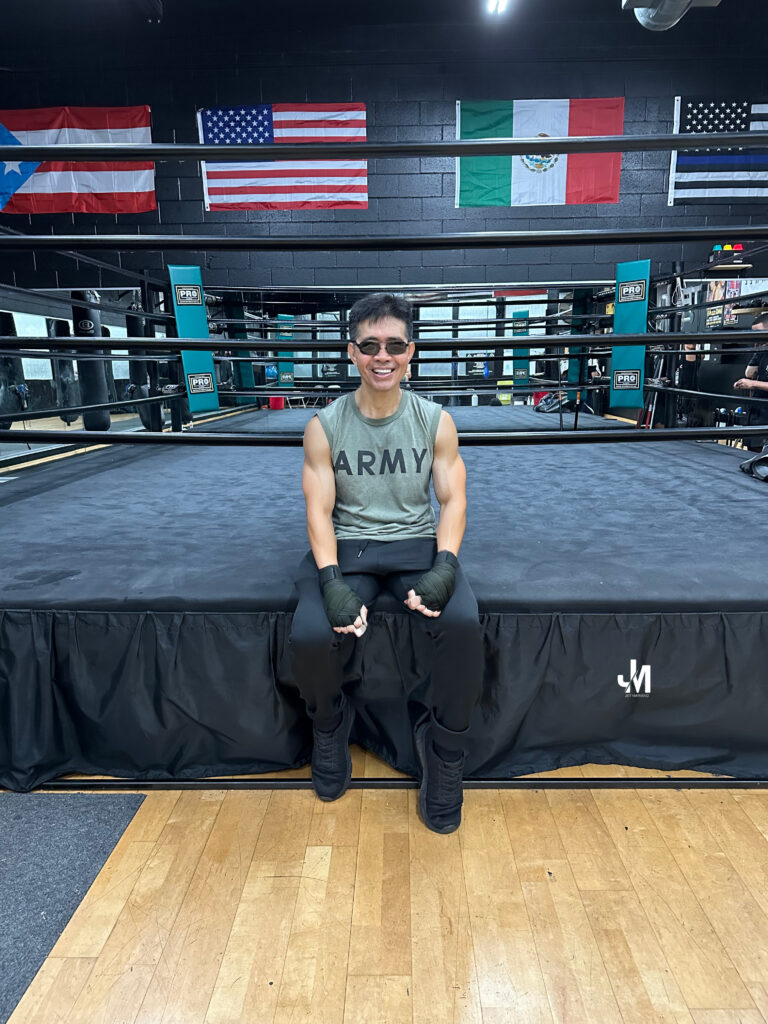
    Taken during one of my off-hour sessions. I train alone, not to be seen — but to stay sharp.

    Why I Train

    I’ve been training my body since I was 14. Not for trophies. Not for applause. But because strength is survival.

    I’m what some would call a fidget person — I don’t sit still. Whether it’s daily 120 push-ups, 500 straight punches, kettlebell drills, dumbbells, or sit-ups, I stay in motion. At home or at the boxing gym, movement is life.

    This isn’t for show — it’s my way of staying consistent and sharp, physically and mentally.


    My Daily Routine

    Weekly Flow Example:
    🥊 Daily: 120 push-ups, 500 straight punches
    🏋️ 3x/week: Dumbbell/barbell circuits (arms/forearms/core)
    🚶 Daily: Standing/stepping cardio while working
    💻 All week: Fidgeting with purpose — I move even while I think


    My Diet & Recovery Discipline

    I’ve been eating clean since I was a teenager. Why? Because I asked myself early:

    “How can I lead, serve, or perform at work if I’m sick?”

    I owe it to my team and myself to show up every day in peak form. That means no shortcuts when it comes to fueling my body.

    My fuel includes:

    • Bitter greens: kale, arugula, spinach, wheatgrass.
    • Beets(red and golden), broccoli, carrots.
    • Salmon, sea bass, tilapia and white meat(chicken).
    • Blueberries, blackberries, raspberries, pistachio nuts, almond nuts, walnuts, pumpkin seeds.
    • Avocados, omega-3 capsules, vitamin C, B-complex, D.
    • Protein powder mixed into smoothies.
    • 8–9 hours of consistent sleep.
    • At least 8 bottles of water daily.

    This isn’t a diet — it’s a covenant with myself.


    🥋 “The gym doesn’t build me — discipline does. My consistency is my survival.”


    Strength Beyond the Gym

    This mindset bleeds into everything I do — especially my work in IT.

    How can I troubleshoot under pressure if my body is breaking down? How can I be mentally sharp if I’m fatigued or inflamed? I stay ready, because I’ve learned that survival isn’t about being the strongest once… it’s about showing up strong every single day.

    Discipline in the dark creates confidence in the spotlight.


    Train for Life, Not for Likes

    You don’t need a gym. You don’t need perfect form.
    You need movement. You need discipline.

    One push-up.
    One clean meal.
    One night of full sleep.
    Done daily — becomes survival.

    Don’t train to impress.
    Train to endure.

    © 2012–2025 Jet Mariano. All rights reserved.

    For usage terms, please see the Legal Disclaimer.
  • Conclusion: A Life of Discipline, Healing, and Strength – Jet Mariano

    This isn’t a diet, a program, or a seasonal phase.
    This is a lifestyle — one built on decades of discipline, spiritual clarity, and intentional choices.

    I fuel my body with clean foods.
    I train it daily — no machines, no excuses.
    I hike not to escape but to heal.
    And I stay ready, not out of fear, but out of respect — for life, for freedom, and for those I love.

    Health to me isn’t just the absence of sickness.
    It’s waking up sharp, moving with strength, and resting with peace.

    This is how I stay strong.
    This is how I live long.
    This is how I say, “Thank you, Lord, for another day I didn’t waste.”

    © 2012–2025 Jet Mariano. All rights reserved.

    For usage terms, please see the Legal Disclaimer.

  • Hiking Is Healing: Why I Climb Mountains to Restore Mind and Body – Jet Mariano

    Hiking is more than a workout—it’s therapy. I climb mountains to restore my spirit, clear my mind, and stay grounded in a busy world.

    Utah’s trails are my sanctuary. They demand breath, sweat, and attention — and in return, they give peace, strength, and stillness. I don’t hike for social media. I hike for the silence that speaks louder than words.

    • “This trail didn’t just test my legs. It cleared my mind.”
    • “Sometimes the view isn’t at the summit. It’s in the step that made you keep going.”
    • “Peace isn’t passive. You walk into it.”

    Spiritual Side of Hiking

    When I walk alone in nature, I feel the Lord closer. The rustle of leaves, the sound of wind, the pounding of my heart — it reminds me I’m alive, not just existing.

    Final Thought

    I hike not to escape life, but to meet it head-on — without distractions, without noise, just breath and earth. These trails have heard my prayers, held my sweat, and witnessed my resilience. When I return home from a hike, I’m not just physically lighter — I’m spiritually recharged.

    © 2012–2025 Jet Mariano. All rights reserved.

    For usage terms, please see the Legal Disclaimer.
  • Strength in Simplicity

    No gym. No machines. Just me, gravity, and grit. My routine is simple on paper, but brutal in execution — because I don’t train for show. I train for strength, endurance, and purpose. I believe in mastery through repetition, form through fatigue, and staying battle-ready every single day.

    While others sit, I stand — 9 hours a day in front of a computer, refusing to let comfort weaken my resolve. My arms are wrapped in UV-protective sleeves not just for sun defense, but to aid muscle recovery. I don’t count reps. I count the moments when it starts to burn — because that’s when it really begins.

    My Daily Bodyweight Routine

    • 600 pushups: mix of diamond, regular, and incline
    • 600 bodyweight squats
    • 500 punches: straight, hooks, uppercuts
    • 500-dash sprint
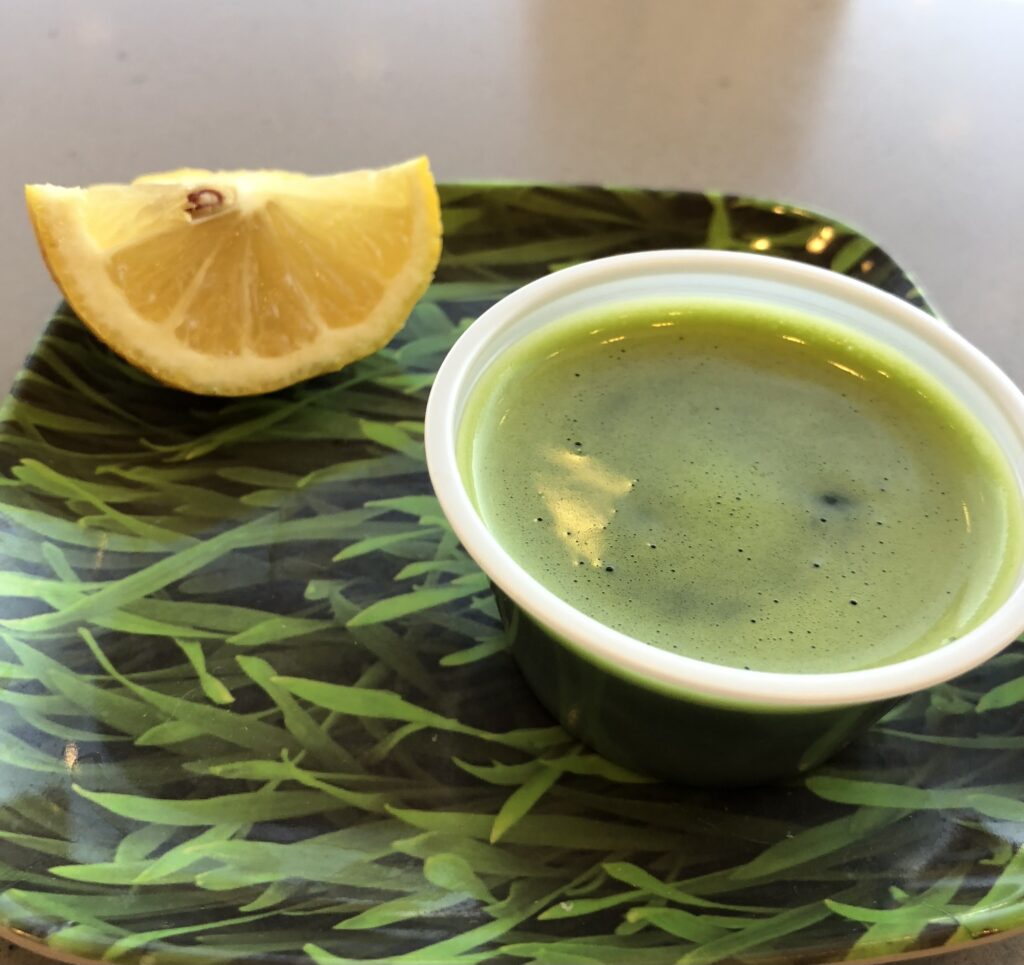
    • Battle rope
    • Modified barbell curls — slow, clean form until it hurts

    Why I Train This Way

    I don’t train to impress. I train to express — discipline, control, and gratitude for a body that still performs. When most people slow down, I’ve chosen to speed up. Age doesn’t define me. Effort does.

    I believe in pain with purpose, form over ego, and standing when the world says sit.

    9 Hours Standing, Not Sitting

    I don’t sit at work. I stand — every day — because movement is part of my lifestyle. My workstation is my battlefield, and I approach it like I approach everything: prepared, focused, and upright.

    No chair can support what discipline builds.

    Recovery Gear I Use

    • Arm sleeves: UV protection + muscle recovery
    • Knee sleeves: for sprints and barbell support
    • Gloves or wraps (optional): for rope work or punching

    Every piece of gear I wear has a purpose — no gimmicks.

    © 2012–2025 Jet Mariano. All rights reserved.

    For usage terms, please see the Legal Disclaimer.

  • My Daily Fuel: The Disciplines That Drive Me in IT, Health, and Faith – Jet Mariano

    Discipline powers my day—IT mastery, martial arts, and faith. Here’s what fuels my life and helps me stay focused, strong, and grateful.


    🥗 Breakfast Bowl of Champions

    Every morning starts with a bowl like this — loaded with:

    • Blueberries and raspberries (antioxidants and anti-aging)
    • Corn for fiber and flavor
    • Fresh mint and leafy greens to cool and cleanse
    • Just enough healthy fat to keep me going for hours

    This isn’t just a salad. It’s a statement.


    🌿 Wheatgrass Shot With Lemon

    Wheatgrass has been part of my daily detox for years. Combined with lemon, it cleanses the blood, clears the mind, and gives me a sense of internal power. I take it like a sacred ritual — one shot, one breath, and one step closer to balance.


    💬 Final Thought

    People chase diets. I live a lifestyle. What you see here is part of my covenant to care for my body. It’s not about vanity. It’s about staying sharp, calm, and ready — for the people I serve, the work I do, and the God I love.

    © 2012–2025 Jet Mariano. All rights reserved.

    For usage terms, please see the Legal Disclaimer.

  • Health & Fitness: How I Eat Clean, Stay Strong, and Live Long

    At my current age in life, I feel like I’m in my early 30s — full of energy, mentally sharp, and physically strong. That’s no accident. This post shares how I fuel my body, train my mind, and keep my spirit steady. From what I eat to how I move and why I rest, this is the lifestyle that keeps me grateful and grounded.

    ## My Daily Fuel

    ## Strength in Simplicity

    ## Hiking is Healing

    ## Steel & Stillness

    ## Conclusion

  • How I Deployed and Cleaned Up a Windows Server VM in Azure with PowerShell

     The Problem

    After spinning up a few test VMs in Azure, I realized the costs were creeping up from unused resources. Manual cleanup was time-consuming, especially when tracking which NICs, disks, and IPs belonged to what. I needed a faster, cleaner solution—one script to deploy, another to destroy.

     The Solution

    I wrote two PowerShell scripts:

    1. New-AzServerVmRdp-20250509_GitHub.ps1: Fully automates deployment of a Windows Server 2019 VM with RDP access.
    2. Remove-AzServerVmRdp-20250509_GitHub.ps1: Cleans up the entire environment by removing the resource group.

    These scripts not only deploy the VM but configure the VNet, subnet, NSG, public IP, and NIC—all with one command.

     The Code

    Deploy Script:

    New-AzResourceGroup -Name "MyTestRG" -Location "westus"
    # ... other setup commands
    New-AzVM -ResourceGroupName "MyTestRG" -Location "westus" -VM $vmConfig

    Cleanup Script:

    Remove-AzResourceGroup -Name "MyTestRG" -Force -AsJob

     The Result

    I can now spin up a fresh, RDP-ready Windows Server in under 10 minutes and wipe it clean with a single line. I tested the RDP connection, confirmed the VM’s performance, and removed the environment—no residual charges, no clutter.

     🔗 View on GitHub

    © 2012–2025 Jet Mariano. All rights reserved.

    For usage terms, please see the Legal Disclaimer.

  • Deploy & Remove Windows Server VM in Azure via RDP

    Automate the full lifecycle of a Windows Server VM in Azure — from deployment to secure RDP access and safe cleanup — using PowerShell.

    Step-by-Step Process:

    1. Azure Login and Subscription Setup
    Connect-AzAccount
    Set-AzContext -SubscriptionId "<your-subscription-id>"
    

    2. Create Resource Group

    New-AzResourceGroup -Name "MyTestRG" -Location "westus"
    

    3. Create Virtual Network and Subnet

    $subnetConfig = New-AzVirtualNetworkSubnetConfig -Name "MySubnet" -AddressPrefix "10.0.1.0/24"
    $vnet = New-AzVirtualNetwork -Name "MyVNet" -ResourceGroupName "MyTestRG" -Location "westus" -AddressPrefix "10.0.0.0/16" -Subnet $subnetConfig
    

    4. Create Network Security Group with RDP Access

    $rdpRule = New-AzNetworkSecurityRuleConfig -Name "Allow-RDP" -Protocol "Tcp" -Direction "Inbound" -Priority 1000 -SourceAddressPrefix "*" -SourcePortRange "*" -DestinationAddressPrefix "*" -DestinationPortRange 3389 -Access "Allow"
    $nsg = New-AzNetworkSecurityGroup -Name "MyNSG" -ResourceGroupName "MyTestRG" -Location "westus" -SecurityRules $rdpRule
    

    5. Create Public IP Address

    $publicIp = New-AzPublicIpAddress -Name "MyPublicIP" -ResourceGroupName "MyTestRG" -Location "westus" -AllocationMethod Static -Sku Basic
    

    6. Create Network Interface

    $subnet = Get-AzVirtualNetworkSubnetConfig -Name "MySubnet" -VirtualNetwork $vnet
    $nic = New-AzNetworkInterface -Name "MyNIC" -ResourceGroupName "MyTestRG" -Location "westus" -SubnetId $subnet.Id -NetworkSecurityGroupId $nsg.Id -PublicIpAddress $publicIp
    

    7. Enter Credentials

    $cred = Get-Credential  # Use a simple username like 'azureadmin'
    

    8. Configure the Server VM

    $vmConfig = New-AzVMConfig -VMName "MyServerVM" -VMSize "Standard_B1s"
    $vmConfig = Set-AzVMOperatingSystem -VM $vmConfig -Windows -ComputerName "MyServerVM" -Credential $cred
    $vmConfig = Set-AzVMSourceImage -VM $vmConfig -PublisherName "MicrosoftWindowsServer" -Offer "WindowsServer" -Skus "2019-Datacenter" -Version "latest"
    $vmConfig = Add-AzVMNetworkInterface -VM $vmConfig -Id $nic.Id
    

    9. Deploy the Server VM

    New-AzVM -ResourceGroupName "MyTestRG" -Location "westus" -VM $vmConfig
    

    10. Connect via Remote Desktop

    1. Launch Remote Desktop (RDP)
    2. Enter the Public IP of your VM
    3. Click “More choices” > “Use a different account”
    4. Log in with:
      • Username: azureadmin
      • Password: the one you specified
    5. Accept the certificate prompt

    ✅ You’re connected!

    Clean Up: Delete Azure Windows Server VM and Resources to Avoid Charges

    To prevent ongoing charges after testing, it’s important to delete all associated resources, including:

    • The Virtual Machine (MyServerVM)
    • Public IP Address
    • Network Interface (MyNIC)
    • Network Security Group (MyNSG)
    • Virtual Network and Subnet (MyVNet, MySubnet)
    • Managed Disk
    • And any other resource under the resource group

    You can remove all of these at once using the following command:

    Remove-AzResourceGroup -Name "MyTestRG" -Force -AsJob
    

    🔗View on GitHub

    © 2012–2025 Jet Mariano. All rights reserved.

    For usage terms, please see the Legal Disclaimer.

  • Deploy and Clean Up a Windows VM in Azure Using PowerShell

    To provision a Windows 10 virtual machine in Azure, assign it a public IP address, and successfully connect to it via Remote Desktop Protocol (RDP).

    Step-by-Step Process:

    1. Azure Login and Subscription Setup

    Connect-AzAccount
    Set-AzContext -SubscriptionId "<your-subscription-id>"

    2. Create Resource Group

    New-AzResourceGroup -Name "MyTestRG" -Location "westus"

    3. Create Virtual Network and Subnet

    $subnetConfig = New-AzVirtualNetworkSubnetConfig -Name "MySubnet" -AddressPrefix "10.0.1.0/24"
    $vnet = New-AzVirtualNetwork -Name "MyVNet" -ResourceGroupName "MyTestRG" -Location "westus" -AddressPrefix "10.0.0.0/16" -Subnet $subnetConfig

    4. Create Network Security Group with RDP Access

    $rdpRule = New-AzNetworkSecurityRuleConfig -Name "Allow-RDP" -Protocol "Tcp" -Direction "Inbound" -Priority 1000 -SourceAddressPrefix "*" -SourcePortRange "*" -DestinationAddressPrefix "*" -DestinationPortRange 3389 -Access "Allow"
    $nsg = New-AzNetworkSecurityGroup -Name "MyNSG" -ResourceGroupName "MyTestRG" -Location "westus" -SecurityRules $rdpRule

    5. Create Network Interface (NIC)

    $subnet = Get-AzVirtualNetworkSubnetConfig -Name "MySubnet" -VirtualNetwork $vnet
    $nic = New-AzNetworkInterface -Name "MyNIC" -ResourceGroupName "MyTestRG" -Location "westus" -SubnetId $subnet.Id -NetworkSecurityGroupId $nsg.Id

    6. Enter Credentials

    $cred = Get-Credential  # Use a username like: azureadmin and a strong password

    7. Configure the Windows 10 VM

    $vmConfig = New-AzVMConfig -VMName "MyVM" -VMSize "Standard_B1s"
    $vmConfig = Set-AzVMOperatingSystem -VM $vmConfig -Windows -ComputerName "MyVM" -Credential $cred
    $vmConfig = Set-AzVMSourceImage -VM $vmConfig -PublisherName "MicrosoftWindowsDesktop" -Offer "Windows-10" -Skus "win10-22h2-pro" -Version "latest"
    $vmConfig = Add-AzVMNetworkInterface -VM $vmConfig -Id $nic.Id

    8. Deploy the Virtual Machine

    New-AzVM -ResourceGroupName "MyTestRG" -Location "westus" -VM $vmConfig

    9. Create and Attach a Public IP Address

    $publicIp = New-AzPublicIpAddress -Name "MyPublicIP" -ResourceGroupName "MyTestRG" -Location "westus" -AllocationMethod Static -Sku Basic
    $nic = Get-AzNetworkInterface -Name "MyNIC" -ResourceGroupName "MyTestRG"
    $nic.IpConfigurations[0].PublicIpAddress = $publicIp
    Set-AzNetworkInterface -NetworkInterface $nic

    10. Reset VM Admin Credentials (if needed)

    Set-AzVMExtension -ResourceGroupName "MyTestRG" -Location "westus" -VMName "MyVM" -Name "ResetAccess" -Publisher "Microsoft.Compute" -ExtensionType "VMAccessAgent" -TypeHandlerVersion "2.4" -Settings @{ "UserName" = "azureadmin" } -ProtectedSettings @{ "Password" = "YourNewP@ssw0rd!" }

    Final Step: Connect via Remote Desktop

    1. Launch Remote Desktop (RDP)
    2. Enter the Public IP of your VM
    3. Click “More choices” > “Use a different account”
    4. Login as:
      • Username: azureadmin
      • Password: the one you specified
    5. Accept certificate prompt

    You’re now connected! ✅

    Clean Up: Delete Azure VM and Resources to Avoid Charges

    When you’re done testing, it’s important to clean up to avoid being billed for unused resources like disks, NICs, static IPs, and NSGs. You can do that with one simple PowerShell command:

    # Clean up everything in one shot
    Remove-AzResourceGroup -Name "MyTestRG" -Force -AsJob
    

    This command deletes:

    • The Virtual Machine (MyVM)
    • Network Interface (MyNIC)
    • Network Security Group (MyNSG)
    • Virtual Network (MyVNet) and Subnet (MySubnet)
    • Public IP (MyPublicIP)
    • Managed Disks and any attached resources

    📎 View on GitHub

    © 2012–2025 Jet Mariano. All rights reserved.
    For usage terms, please see the Legal Disclaimer.

  • Compact and Defrag Exchange On-Prem Mailbox Database

    This script uses eseutil to perform offline defragmentation and compaction of Exchange mailbox databases, helping reclaim unused space and improve performance.

    # Dismount database
    Dismount-Database -Identity "Mailbox Database 001"
    
    # Defrag the database (adjust path as needed)
    eseutil /d "E:\ExchangeDB\Mailbox Database 001.edb" /t"E:\Temp\DBDefrag.edb"
    
    # Mount database back
    Mount-Database -Identity "Mailbox Database 001"
    

    This script must be run during off-hours. Always take a full backup before running offline defrag.

    🔗 View on GitHub

    © 2012–2025 Jet Mariano. All rights reserved.
    For usage terms, please see the Legal Disclaimer.

  • Assign Permissions to Distribution Group and Linked Shared Mailbox

    This script adds members to an existing Distribution Group and grants them appropriate permissions on a related shared mailbox (like “Send As” and “Full Access”). Useful when a team manages both a DL and its mailbox.

    # Add members to Distribution Group
    $members = @("[email protected]", "[email protected]", "[email protected]")
    foreach ($m in $members) {
        Add-DistributionGroupMember -Identity "Sales Team" -Member $m
    }
    
    # Assign Send As & Full Access to all DG members (loop through)
    foreach ($m in $members) {
        Add-MailboxPermission -Identity "[email protected]" -User $m -AccessRights FullAccess -InheritanceType All
        Add-ADPermission -Identity "Sales Team" -User $m -ExtendedRights "Send As"
    }
    

    Great for use in tightly aligned teams with shared inbox responsibility.

    🔗 View on GitHub

    © 2012–2025 Jet Mariano. All rights reserved.

    For usage terms, please see the Legal Disclaimer.

  • Create Marketing Shared Mailbox with Read, Send As, and Full Access Roles

    This script creates a Marketing shared mailbox and assigns three permission tiers: 10 users with read-only, 10 with “Send As,” and one owner with full access. Great for controlled collaboration environments.

    # Create Shared Mailbox
    New-Mailbox -Name "Marketing Shared" -Shared -PrimarySmtpAddress "[email protected]"
    
    # Assign Read-Only Access (View Only - use mailbox folder permissions)
    $readUsers = @("[email protected]", "[email protected]", "[email protected]")
    foreach ($user in $readUsers) {
        Add-MailboxFolderPermission -Identity "[email protected]:\Inbox" -User $user -AccessRights Reviewer
    }
    
    # Assign Send As permissions
    $sendAsUsers = @("[email protected]", "[email protected]", "[email protected]")
    foreach ($user in $sendAsUsers) {
        Add-ADPermission -Identity "Marketing Shared" -User $user -ExtendedRights "Send As"
    }
    
    # Assign Full Access to Owner
    Add-MailboxPermission -Identity "[email protected]" -User "[email protected]" -AccessRights FullAccess -InheritanceType All
    

    Run this after connecting to Exchange Online. Mailbox folder permissions are used for read-only access.

    🔗 View on GitHub

    © 2012–2025 Jet Mariano. All rights reserved.

    For usage terms, please see the Legal Disclaimer.

  • ChromeEdgeCleaner

    Welcome!
    This utility helps system administrators quickly clear cache, cookies, history, and temp files from both Chrome and Edge using PowerShell—ideal for troubleshooting browser issues or prepping a machine for user handoff.

    Description:
    This script uses file system paths and environment variables to remove temporary internet files, browsing history, and cached data from both Microsoft Edge and Google Chrome. It is especially useful in enterprise environments for periodic cleanup or pre-deployment routines.

    # Clear Chrome browser data
    $chromePaths = @(
        "$env:LOCALAPPDATA\Google\Chrome\User Data\Default\Cache",
        "$env:LOCALAPPDATA\Google\Chrome\User Data\Default\Code Cache",
        "$env:LOCALAPPDATA\Google\Chrome\User Data\Default\Cookies",
        "$env:LOCALAPPDATA\Google\Chrome\User Data\Default\History",
        "$env:LOCALAPPDATA\Google\Chrome\User Data\Default\Temp"
    )
    foreach ($path in $chromePaths) {
        if (Test-Path $path) {
            Remove-Item $path -Recurse -Force -ErrorAction SilentlyContinue
        }
    }
    
    # Clear Edge browser data
    $edgePaths = @(
        "$env:LOCALAPPDATA\Microsoft\Edge\User Data\Default\Cache",
        "$env:LOCALAPPDATA\Microsoft\Edge\User Data\Default\Code Cache",
        "$env:LOCALAPPDATA\Microsoft\Edge\User Data\Default\Cookies",
        "$env:LOCALAPPDATA\Microsoft\Edge\User Data\Default\History",
        "$env:LOCALAPPDATA\Microsoft\Edge\User Data\Default\Temp"
    )
    foreach ($path in $edgePaths) {
        if (Test-Path $path) {
            Remove-Item $path -Recurse -Force -ErrorAction SilentlyContinue
        }
    }
    

    Notes:

    • Best run with administrative privileges.
    • Does not remove saved passwords or extensions.
    • Can be scheduled via Task Scheduler for weekly cleanup.

    🔗 View on GitHub

    © 2012–2025 Jet Mariano. All rights reserved.

    For usage terms, please see the Legal Disclaimer.

  • Distribution Group & Shared Mailbox Permissions

    Welcome:
    This PowerShell module automates the creation of a Distribution Group and assigns shared mailbox permissions in one go. Built for environments like Pimco and Monster where access precision and scale are critical.

    Description:
    Create a Distribution Group with over 20 members, nest a shared mailbox and another DL, and assign permissions like “Send As” and “Full Access” as needed.

    # Create Distribution Group
    New-DistributionGroup -Name "LegalTeamDG" -PrimarySmtpAddress [email protected] -OrganizationalUnit "OU=Groups,DC=domain,DC=com"
    
    # Add users
    $users = @("[email protected]", "[email protected]", ..., "[email protected]")
    foreach ($user in $users) {
        Add-DistributionGroupMember -Identity "LegalTeamDG" -Member $user
    }
    
    # Nest a Shared Mailbox and DL
    Add-DistributionGroupMember -Identity "LegalTeamDG" -Member "[email protected]"
    Add-DistributionGroupMember -Identity "LegalTeamDG" -Member "[email protected]"
    
    # Assign Send As and Full Access
    Add-RecipientPermission -Identity "[email protected]" -Trustee "LegalTeamDG" -AccessRights SendAs -Confirm:$false
    Add-MailboxPermission -Identity "[email protected]" -User "LegalTeamDG" -AccessRights FullAccess -InheritanceType All
    

    Replace placeholder values with actual names and domains.

    Requires Exchange Online PowerShell module.

    Add DLs with caution—permissions are inherited recursively.

    🔗 View on GitHub

    © 2012–2025 Jet Mariano. All rights reserved.

    For usage terms, please see the Legal Disclaimer.

error: Content is protected !!